QR code asset tracking with Jira: Mobile workflows for IT teams
In this guide, we will walk through how to implement QR code tracking for your IT assets, covering everything from choosing the right label materials to setting up mobile workflows that let your team update Jira from anywhere in the building.

Colin Reed
IT Expert and Content Writer
Last Updated

IT asset management does not have to be a desk-bound job. By bringing your Jira instance into the physical world, you can resolve tickets faster and maintain a level of inventory accuracy that spreadsheets just cannot match.
Bridging the gap between physical hardware and digital Jira issues is easier than you think. If you have ever spent a Friday afternoon wandering through a storage room looking for a specific laptop, you know that spreadsheets just do not cut it. You need a way to link the device in your hand directly to its record in your system.
Why QR code asset tracking with Jira is better than spreadsheets
Most IT teams start their journey with a shared spreadsheet. It works fine for the first 50 devices, but eventually, the data becomes unreliable. Someone forgets to update a serial number, a laptop is handed off in a hallway without being recorded, or a "temporary" loan becomes permanent. The result is a source of truth that is anything but truthful.
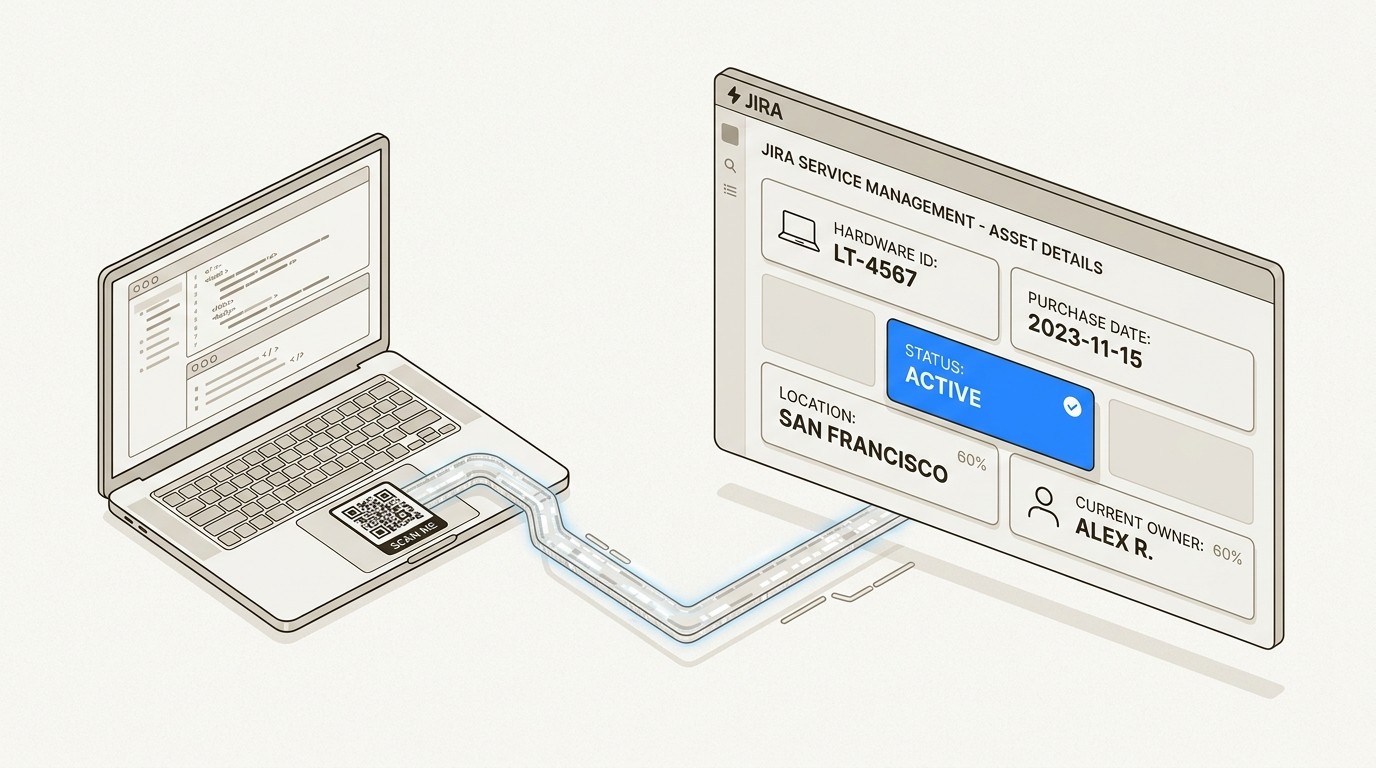
QR code asset tracking with Jira solves this by creating a direct link between physical hardware and its digital twin. Instead of typing a 15-character serial number into a search bar, a technician simply scans a sticker. This transition from manual entry to instant scanning reduces human error significantly. Atlassian found that using QR codes allowed their IT group to easily scan assets and load details directly inside Jira.
Linking physical devices to their Jira issues also breaks down information silos. When a developer reports a hardware issue, support has instant context. They can see the full repair history, specifications, and even the Intune sync status without having to ask the user for details. This context improves the "time to resolution" for support tickets because the troubleshooting starts with facts, not guesses.
Choosing your hardware: Printers, labels, and scanners
Before you start generating codes, you need the right tools to bring them into the physical world. While you could technically print labels on a standard office printer, industrial solutions are better for long-term durability.
Industrial label printers
For high-volume label production, we recommend dedicated thermal transfer printers like the Citizen CLS-631 or the Zebra series. These machines are designed to run thousands of labels without jamming and offer much better print resolution for small QR codes. Atlassian successfully deployed industrial printers across their global offices to maintain a consistent tagging standard.
Durable label materials
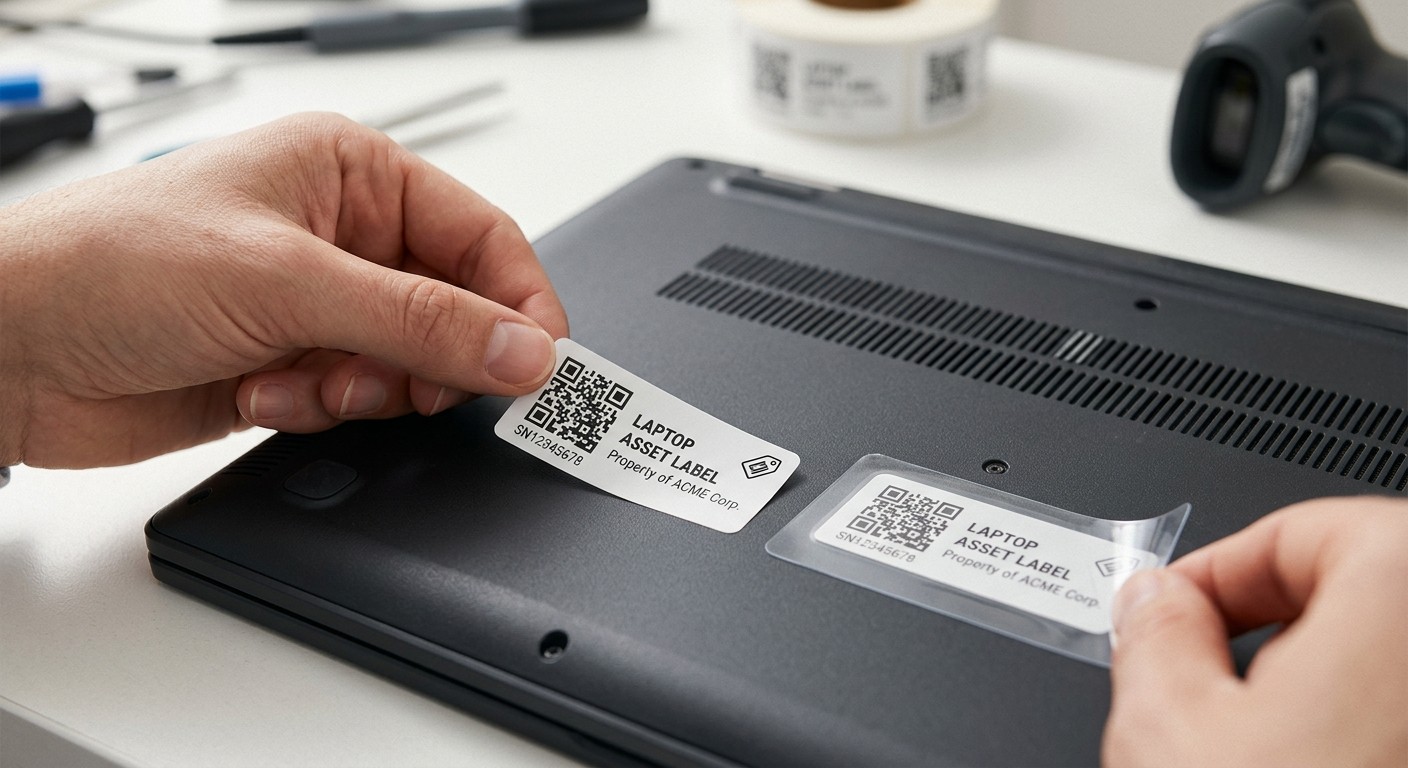
Laptops go through heating and cooling cycles, and they spend a lot of time being shoved into backpacks. Standard paper stickers will peel or fade within months. You should use "Plain Poly" materials which are tear-resistant and leave minimal adhesive residue when removed. For extra protection, we suggest applying a clear protective cover, such as Avery Crystal Clear shipping labels, over the asset tag. This ensures the code remains scannable even after years of heavy use.
Scanning hardware choices
You have two main options for scanning: dedicated hardware or mobile phones.
Dedicated Scanners: Tools like the Motorola DS4208 are fast and durable. They often appear to a computer as a keyboard, making them compatible with almost any system.
Smartphone Cameras: For most modern IT teams, smartphones are the better choice. They are already in everyone's pocket and offer more flexibility for mobile workflows. Apps like ScanStar or Mobile for Jira turn a standard phone into a powerful asset management terminal.
What you will need to get started
Before jumping into the setup, ensure you have the following prerequisites ready:
A Jira Cloud instance (ideally Jira Service Management Premium or Enterprise if you want to use native Assets).
A label printer and compatible poly labels.
Admin permissions to create custom fields or object schemas in Jira.
A mobile device with a scanning app installed.
How to set up QR code asset tracking with Jira
Here is how the process works to get your physical inventory synced with your digital records.
Step 1: Create your asset schema or issue type
First, you need to establish where your data will live. In Jira Assets, you will create an object schema to represent your equipment. If you are using Jira Software without a dedicated asset tool, you can create a custom issue type called "Asset".
Make sure to define all the attributes you want to track. Common fields include:
Serial Number
Manufacturer and Model
Physical Location (Office, Floor, Room)
Current Status (In Stock, Assigned, In Repair)
Purchase Date and Warranty Expiration
For more on building a solid inventory, check out our comprehensive guide to IT asset inventory management.
Step 2: Generate and print QR codes
Once your assets are recorded in Jira, you can generate the codes. If you are using Assets, you can use bulk actions to print QR codes directly from the List view.
You can choose sizes ranging from 100 to 300 pixels. We recommend a size that is large enough to scan easily but small enough to fit on the bottom of a laptop or a docking station. If you are using a third-party app like Asset Management for Jira, we provide built-in tools to streamline this generation process for unlimited assets.
Step 3: Affix labels and verify assignments
Apply the labels to your hardware. Consistency is key here. For laptops, we suggest the bottom casing near the manufacturer's serial number. For monitors, the back panel or the stand works best.
After sticking the label, perform a test scan to ensure it pulls up the correct Jira issue. This is also a great time to verify that the current user assigned in Jira matches the person actually holding the device. If you are managing a large fleet, you might find our practical guide to hardware inventory software helpful for scaling this process.
Step 4: Configure mobile scanning workflows
The final step is connecting your mobile device to your Jira instance.
Once configured, you can scan any asset to instantly view its history or update its status. This creates a powerful mobile workflow where your technicians never have to return to their desks to update a record.
Advanced mobile workflows for field technicians
Setting up the codes is just the beginning. The real value comes from how your team uses them in the field. Let's break down three high-impact workflows.
Rapid inventory audits
Quarterly audits are usually a nightmare of clipboards and manual verification. With QR codes, a technician can walk through a floor and verify hundreds of assets in minutes. By scanning each device, the "Last Verified Date" in Jira updates automatically. This provides an accurate audit trail for compliance and insurance purposes. If you are planning an audit soon, our IT asset recovery offboarding checklist can help you prepare.
On-site maintenance and troubleshooting
Imagine a server rack in a dark data center. Instead of hunting for the right documentation, a technician scans a QR code on the server blade. Instantly, their phone displays the full repair history, maintenance schedule, and any open support tickets for that specific machine. This "just-in-time" information prevents technicians from repeating failed fixes and helps identify "lemon" hardware that should be replaced rather than repaired.
Mobile asset checkout and loaner programs
Managing a loaner laptop pool is often a chaotic process. With QR codes, you can streamline the checkout. The technician scans the laptop and then scans the user's ID or selects their name in the mobile app. The status updates to "On Loan" and the assignment is recorded instantly. You can even set up automated return reminders based on the checkout date.
Troubleshooting common QR tracking challenges
Even the best systems have hiccups. Here is how to handle common issues with QR code asset tracking with Jira.
Worn or damaged labels: If your labels are peeling, you likely need a better adhesive or a protective cover. Always use thermal transfer ribbons rather than inkjet or laser printing for longevity.
Lighting and focus issues: Server rooms are often dark, which can make scanning difficult. Ensure your QR codes have an adequate "quiet zone" (the white border around the code) and use high-contrast patterns. Modern apps like ScanStar have built-in light controls to help with this.
Data sync latency: If a scan does not show the latest update, check your mobile app's connection. Ensure your team is using a version that supports real-time sync with Jira Cloud to avoid "source of truth" conflicts.
Streamlining your IT asset management with Asset Management for Jira
While native Jira Assets is a powerful tool, many teams find that they need more flexibility and predictable pricing. That is where we can help. Our product, Asset Management for Jira, is built to be "simply powerful." We focus on eliminating the steep learning curve often associated with enterprise CMDBs.
One of our biggest differentiators is our MDM synergy. We do not just track the physical sticker; we sync directly with Microsoft Intune, Jamf Pro, and Kandji. This means your inventory and user assignments stay current without manual data entry. If a device checks into Intune with a new user, that change reflects in Jira automatically.
We also offer a more predictable ROI. Unlike some enterprise tools that use consumption-based fees for objects, we provide tiered per-user pricing with unlimited assets included. Whether you are tracking 500 laptops or 5,000, your costs stay stable.
If you are just getting started, we recommend reading our comprehensive guide to Jira asset management to understand how to structure your processes for long-term success. You might also want to compare your options with our Jira asset management pricing breakdown.
Finalizing your QR tracking strategy
Implementing QR code asset tracking with Jira is a practical step toward a more professional IT operation. It moves your team away from reactive "where is it?" fire drills and toward a proactive, data-driven approach. By combining durable physical labels with a powerful mobile workflow, you ensure that your Jira instance remains a reliable single source of truth.
Start small by tagging one department or one asset category, like your laptop fleet. Once your team sees how much time they save during deployments and audits, the benefits will speak for themselves. If you need help choosing the right plan for your team, our Intune asset management solutions for Jira page has more details on how to integrate your managed devices.
Frequently Asked Questions
How do I generate a QR code asset tracking with Jira label for a single item?
If you are using native Assets, you can navigate to the specific object, select the three-dot menu, and choose 'Print QR code'. If you are using our app, the QR code is automatically generated on the asset page and can be printed or shared instantly.
Which mobile app is best for QR code asset tracking with Jira?
It depends on your needs. The official Jira Cloud app supports basic scanning, but specialized tools like ScanStar or Mobile for Jira offer more advanced features like batch scanning and audit modes that make the workflow much faster.
Can I use existing stickers for QR code asset tracking with Jira?
Yes. If your hardware already has manufacturer barcodes or QR codes, you can import those identifiers into the 'Asset Tag' or 'Serial Number' field in Jira. You do not necessarily need to print new ones if the existing ones are scannable.
Does QR code asset tracking with Jira work with Microsoft Intune?
Yes, especially when using a tool like Asset Management for Jira. We sync your Intune data with your Jira assets, allowing you to scan a physical device and instantly see its MDM enrollment status and compliance state.
Is there a limit to how many items I can track with QR code asset tracking with Jira?
Native Assets in JSM Premium has object limits based on your plan. However, Asset Management for Jira allows for unlimited assets, making it a more scalable choice for growing organizations that do not want to worry about consumption-based fees.
How much does it cost to implement QR code asset tracking with Jira?
The software cost typically starts around $10 per month for smaller teams. On the hardware side, you will need to budget for a label printer (approx. $300-$600) and durable poly labels. Overall, most teams see a positive ROI within the first few months.