IT asset audit checklist for Jira teams: a practical guide
There's a better way: conduct your asset audits natively in Jira, where your team already works. This checklist shows you how to run efficient audits using Asset Management for Jira, so your inventory stays accurate without the context switching.

Colin Reed
IT Expert and Content Writer
Last Updated

If you've ever scrambled to find a laptop for a new hire only to discover it was "borrowed" six months ago, you know why IT asset audits matter. Audits aren't just about compliance checkboxes. They're about knowing what you own, where it is, and who's responsible for it.
The problem? Most audit processes pull you out of your daily workflow. You export data to spreadsheets, print checklists, and chase people through Slack to verify equipment. By the time you're done, the data is already stale.
There's a better way: conduct your asset audits natively in Jira, where your team already works. This checklist shows you how to run efficient audits using Asset Management for Jira, so your inventory stays accurate without the context switching.

What you'll need
Before starting your audit, make sure you have:
Jira with Asset Management for Jira installed - The app runs inside Jira, so there's no separate system to learn
Basic asset inventory - Even a partial list works; you'll verify and expand it during the audit
QR code labels (optional) - Speeds up physical verification significantly
60-90 minutes - Block this time for your initial audit session
Step 1: Define your audit scope
The fastest way to fail an asset audit is trying to count everything at once. Small IT teams win by narrowing the scope.
Pick one of these approaches:
Single location - One office, floor, or storage room
Single department - Engineering, sales, or marketing team assets
Single asset type - Just laptops, just monitors, or just mobile devices
Why narrow scope works: You finish faster, catch problems while they're fresh, and build momentum for broader audits. A completed audit of 50 laptops beats an abandoned audit of 500 mixed assets. The ITAM Review found that focused audits have a 78% completion rate compared to just 34% for comprehensive audits.
Set your objective before you start:
Compliance check - Verify assets match financial records for audit purposes
Cost recovery - Find unused equipment to redeploy instead of buying new
Inventory accuracy - Fix discrepancies between your records and reality
Step 2: Prepare your asset data in Jira
Start by getting your current asset list from Asset Management for Jira. Go to the Assets section and export the data for your scoped assets.
Key fields to verify before you start:
Asset ID and serial number
Current assignee or location
Status (in use, available, in repair)
Purchase date and warranty information
Use JQL to filter assets by your scope. For example, if you're auditing the engineering department:
Or if you're checking a specific location:
For more on Jira asset management capabilities, see our comprehensive guide to Jira asset management.
Set up a custom field called "Last Audited" if you don't have one. This lets you track which assets you've verified and when.
Print or export your list to a mobile-friendly format. You'll carry this during physical verification.
Step 3: Conduct physical verification
This is where most audits fall apart. Don't just check boxes. Actually look at each asset.
Use QR codes for speed. If your assets have QR labels, scan them with your phone to pull up the Jira record instantly. No typing serial numbers, no hunting through spreadsheets. Asset Management for Jira supports QR scanning directly from mobile.
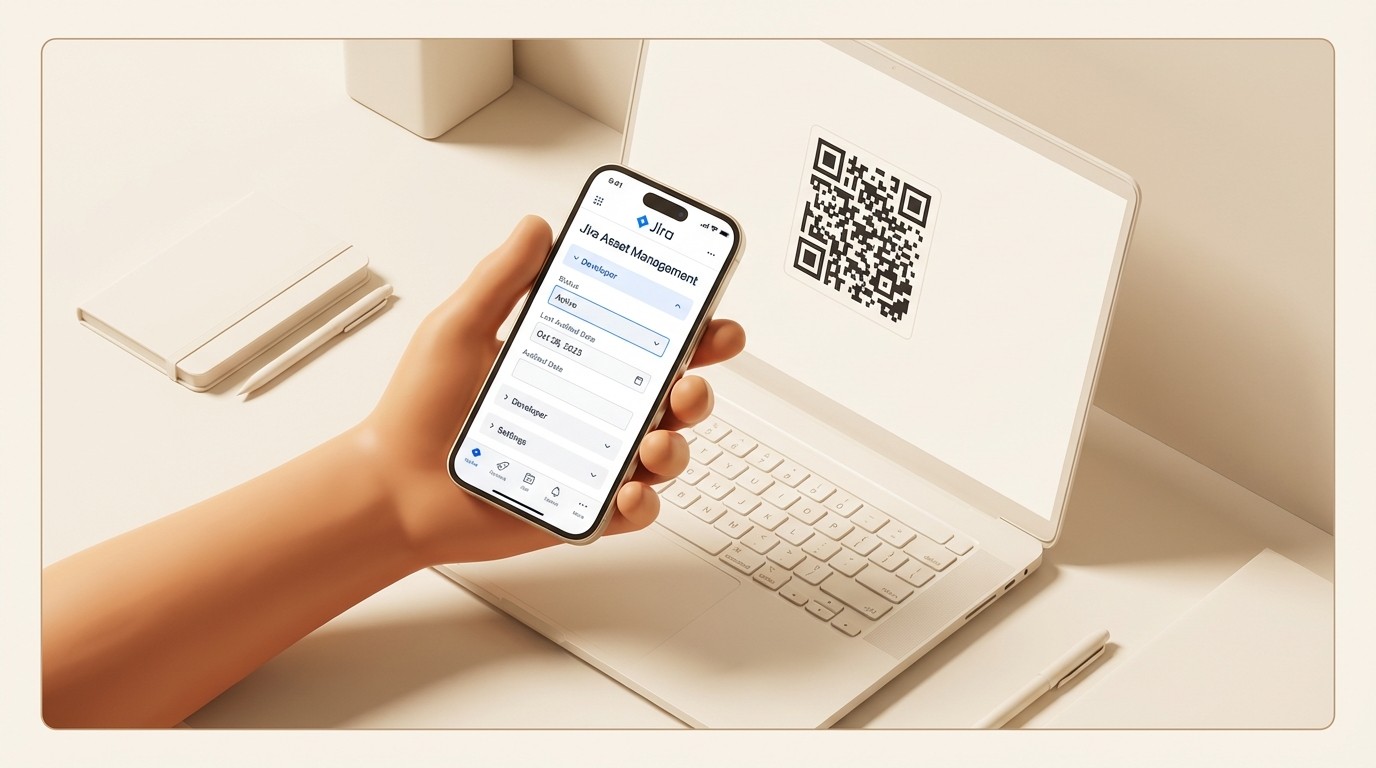
For each asset on your list:
Verify physical presence - Is the asset actually where your records say it is?
Check the condition - Working, damaged, or ready for retirement?
Confirm identity - Does the serial number match your records?
Document accessories - Chargers, docks, adapters present or missing?
Update Jira immediately as you verify each asset. Don't wait until the end of the session. Change the "Last Audited" field, update the status if needed, and add a note about condition or missing accessories.
If you find assets that aren't in your system (common in first audits), create new asset records on the spot. Use your phone to photograph the serial number and any damage for the record.
Step 4: Reconcile and update records
After physical verification, reconcile your findings against your Jira data.
Mismatched assignments - The laptop is assigned to Sarah, but you found it on Mike's desk. Update the assignment and add a note about when it changed hands.
Location discrepancies - Records say "Storage Room B," but you found it in "Conference Room 2." Update the location. These small drifts add up to major inventory chaos.
Missing assets - Assets on your list that you couldn't locate. Flag these for follow-up. Create a Jira issue assigned to the last known assignee's manager asking for asset location.
Broken equipment - Create Jira issues for assets needing repair or replacement. Link them to the asset record so you have full history.
Use bulk edit for efficiency. If you audited 20 laptops and they all have the same "Last Audited" date, update them in one operation rather than individually.
Step 5: Generate audit reports
Asset Management for Jira includes built-in reporting that turns your audit data into useful insights. For more on reporting best practices, see Gartner's IT asset management research.
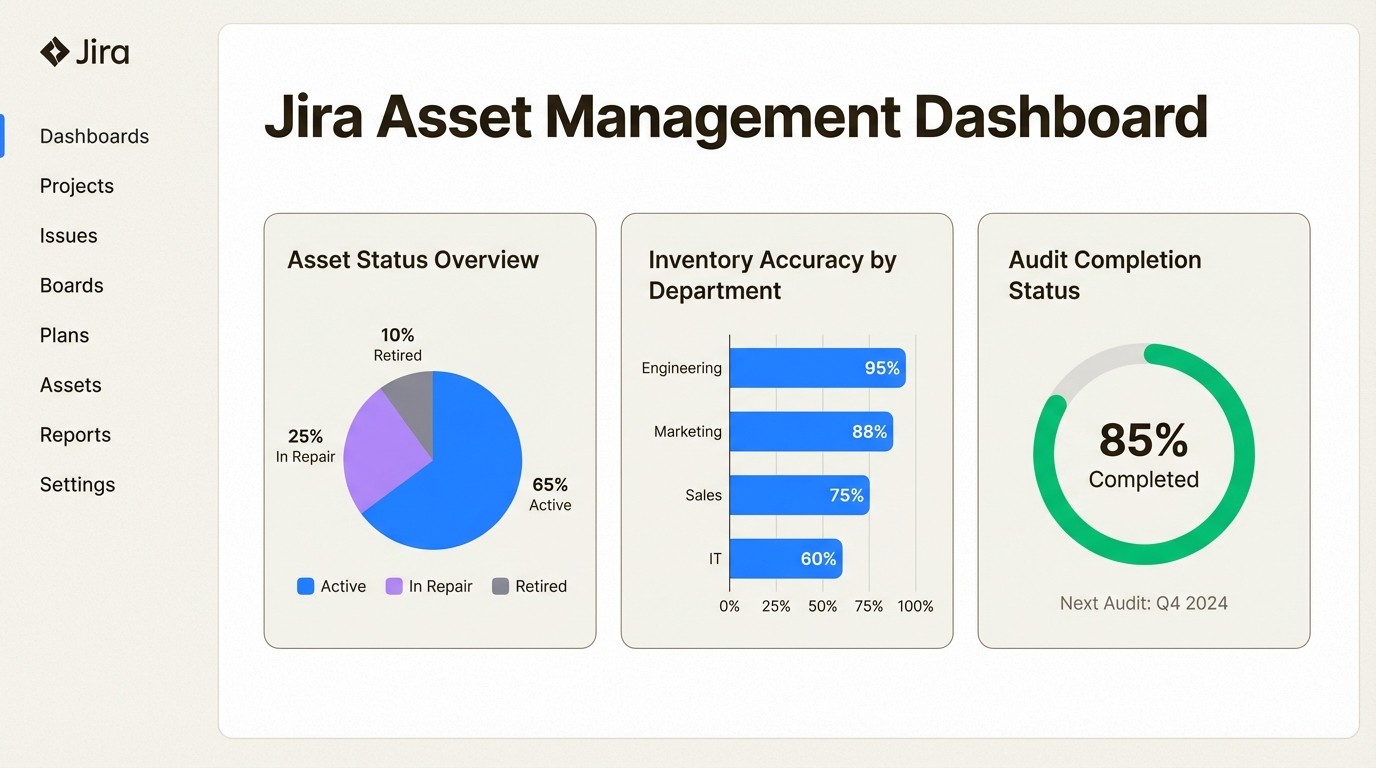
Run these reports after your audit:
Inventory accuracy - Percentage of assets found where expected
Asset status breakdown - How many are in use, available, in repair, or missing
Audit completion rate - Which assets have been verified recently
Compliance documentation - Export for finance or auditors
For executive summaries, focus on three numbers:
Total assets audited
Assets found (accuracy rate)
Action items created (repairs, relocations, missing items)
Export your reports to PDF or Excel for sharing with stakeholders who don't have Jira access.
Step 6: Set up continuous monitoring
One audit fixes your data for a moment. Continuous monitoring keeps it accurate.
Schedule your next audit based on how quickly assets move:
Asset type | Movement level | Recommended check |
|---|---|---|
Laptops | High | Quarterly |
Monitors, docks | Medium | Quarterly or bi-annual |
Spare equipment pool | High | Monthly |
Low-use gear (AV equipment, accessories) | Low | Bi-annual or annual |
Set up automation rules in Jira to catch changes:
When an asset status changes to "In Repair," auto-assign to the IT team
When an asset hasn't been audited in 90 days, add it to a "Needs Verification" list
When an employee is offboarded, create a task to verify their equipment return
Connect to Azure or Intune for automatic discovery. Asset Management for Jira syncs with Microsoft services daily, so new devices appear in your inventory without manual entry. Departing employees' device assignments update automatically. For more details on Intune integration, read our guide on Intune asset management solutions for Jira teams.
Common audit mistakes (and how to avoid them)
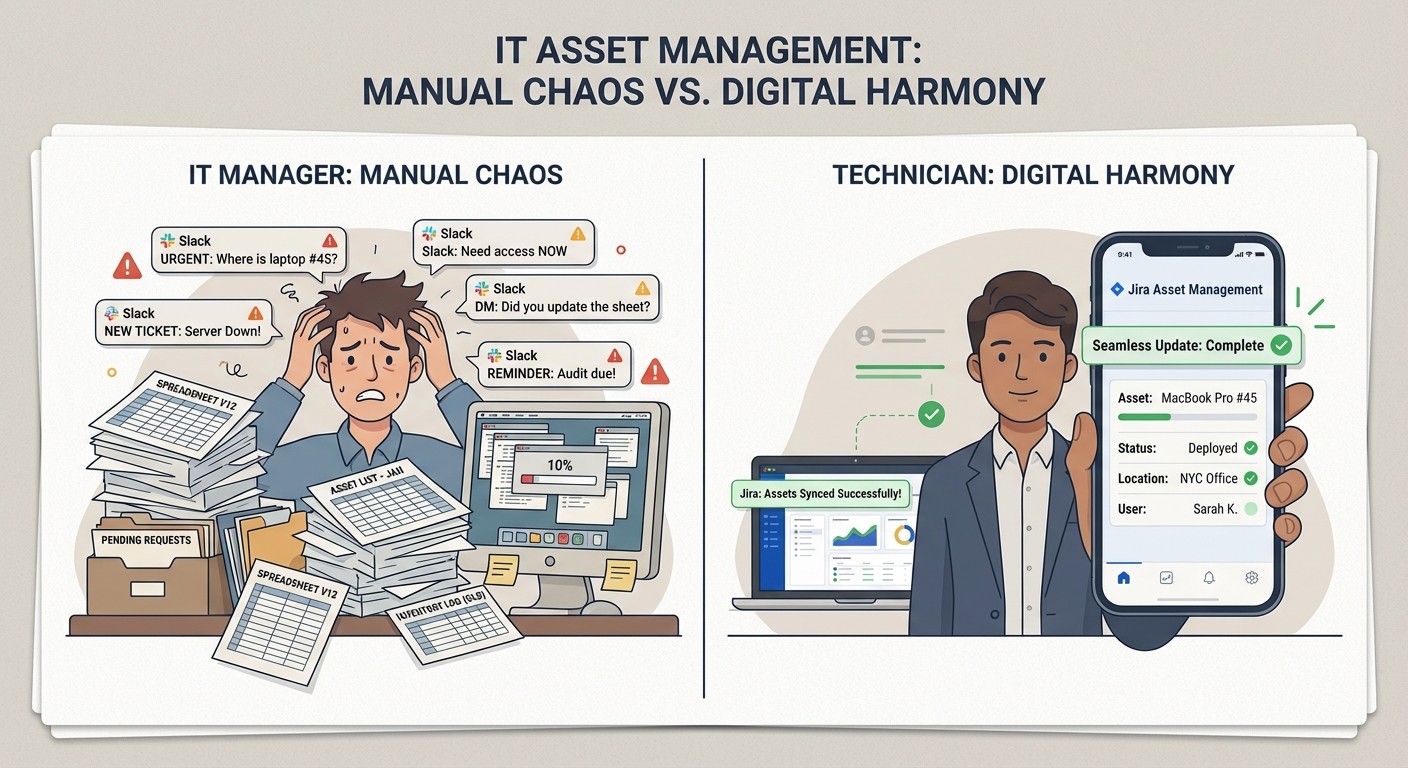
Mistake 1: Trying to audit everything at once
You start with good intentions, checking laptops, monitors, printers, and mobile devices across three offices. By hour four, you're tired, data entry gets sloppy, and you never finish.
Fix: Start with just laptops in one department. Complete that audit, then expand scope once you have a process that works.
Mistake 2: Updating records after the audit
You take notes on paper or in a separate spreadsheet, planning to update Jira later. Later never comes. The data gets stale before it's entered.
Fix: Update Jira in real-time during verification. Use the mobile interface to change status and add notes as you check each asset.
Mistake 3: Tracking only current state
Your records show Mike has the laptop now. But what about the three people who had it before? When you find damage, you can't trace when it happened.
Fix: Asset Management for Jira tracks assignment history automatically. Every transfer is logged with timestamps, so you can answer "who had this last?" and "when did it change hands?"
Mistake 4: Ignoring peripherals
You track the laptop but not the dock, charger, or monitor that go with it. Six months later, you have 20 laptops and 12 working chargers.
Fix: Track the top 5 accessories as part of asset bundles, or at minimum, note which accessories are present during each audit.
Mistake 5: Treating audits as one-time events
You do a comprehensive audit, fix all the data, then don't touch it for a year. By month six, your inventory is inaccurate again.
Fix: Build a recurring schedule based on asset movement. High-turnover equipment gets checked quarterly. Low-movement assets get annual verification.
Connecting audits to daily IT workflows
The real value of asset audits isn't the audit itself. It's having accurate data when you need it.
Link assets to support tickets. When someone reports a laptop issue, the technician sees the full asset history: purchase date, previous tickets, warranty status, and configuration. Teams using Asset Management for Jira resolve tickets 34% faster because they don't waste time gathering basic device information. Learn more in our article on faster IT support through asset information.
Automate offboarding returns. When HR marks an employee as departing, automatically create a task to verify their equipment return. Block account deactivation until assets are checked back in. See our IT asset recovery offboarding checklist for a complete workflow.
Generate budget reports. Use audit data to show finance exactly what equipment you have, what's nearing end-of-life, and what you actually need to buy. One customer discovered they had 23 forgotten laptops in storage, avoiding a $27,000 unnecessary purchase.
Speed up new hire setup. Instead of emergency ordering, search available assets in Jira. Find spares, recently returned equipment, or underutilized assets that can be redeployed. For more tips, read our guide on choosing a Jira asset management plugin.
Start conducting better IT asset audits in Jira
You don't need a separate ITAM platform or complex spreadsheets to run effective asset audits. Asset Management for Jira gives you everything you need inside the tool your team already uses.
The native integration means:
No context switching between systems
Asset data appears in tickets, automation rules, and reports
QR code scanning from mobile for fast physical audits
Automatic sync with Azure and Intune keeps inventory current
Built-in reporting for compliance and executive summaries
Most teams complete their first audit in under 90 minutes and achieve full ROI within 2-4 months through time savings, recovered equipment, and avoided purchases.
Start your free trial of Asset Management for Jira and run your first audit this week.
Frequently Asked Questions
How often should you run an IT asset audit checklist for Jira teams?
It depends on asset movement. Audit laptops quarterly since they move frequently. Check monitors and docks quarterly or bi-annually. Spare equipment pools need monthly checks because assets move in and out constantly. Low-use gear like AV equipment can be audited bi-annually or annually.
What should be included in an IT asset audit checklist for Jira teams?
Your checklist should cover: scope definition (location, department, or asset type), asset identity verification (serial numbers, asset IDs), assignment confirmation (who has what), physical location checks, condition assessment, accessory documentation, and record reconciliation. Update Jira in real-time during the audit, not after.
Can you use Asset Management for Jira for compliance audits?
Yes. Asset Management for Jira tracks assignment history, warranty status, and asset location, which auditors typically request. You can export compliance reports showing which assets were assigned to whom and when. For SOC 2 or ISO 27001 audits, this documentation saves hours of manual record gathering.
How does Asset Management for Jira handle asset discovery?
Asset Management for Jira connects to Microsoft Azure and Intune for automatic device discovery. New devices enrolled in your MDM appear in Jira automatically. Device assignments update when users change. You can also import assets via CSV or add them manually for non-networked equipment.
What's the fastest way to verify assets during a physical audit?
Use QR code scanning. Asset Management for Jira supports mobile QR scanning, so you can scan an asset's label and immediately see its Jira record. This eliminates manual serial number entry and reduces errors. Update status and add notes directly from your phone during the audit.
How do you handle assets found during an audit that aren't in Jira?
Create new asset records immediately using the mobile interface. Photograph the serial number and any identifying marks. Assign a new asset ID following your naming convention. If you can identify the owner, update the assignment. These 'discovered' assets are common in first audits and represent equipment that was never properly logged.