Intune Jira integration: A complete setup guide for 2026
This guide walks through your integration options for connecting Intune and Jira, provides step-by-step setup instructions, and covers best practices for maintaining accurate asset data.

Colin Reed
IT Expert and Content Writer
Last Updated
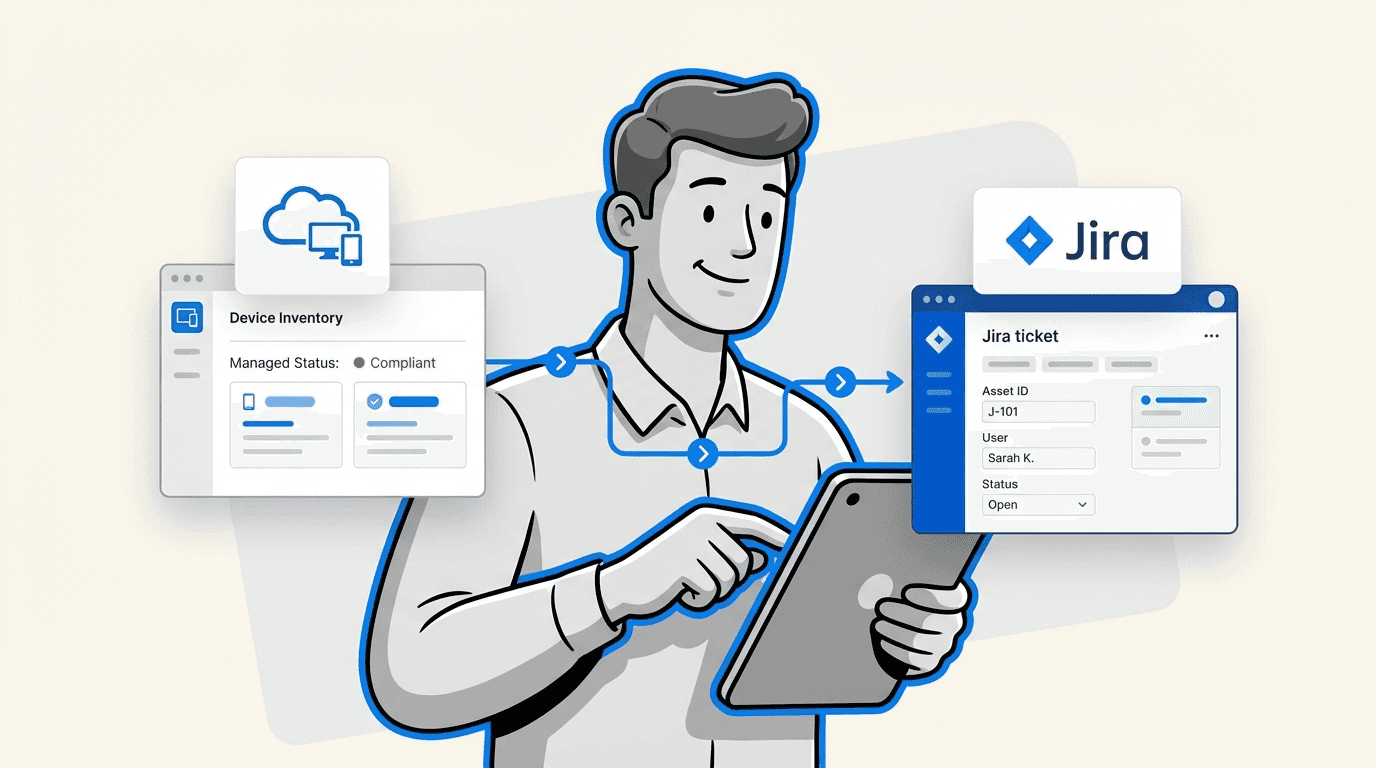
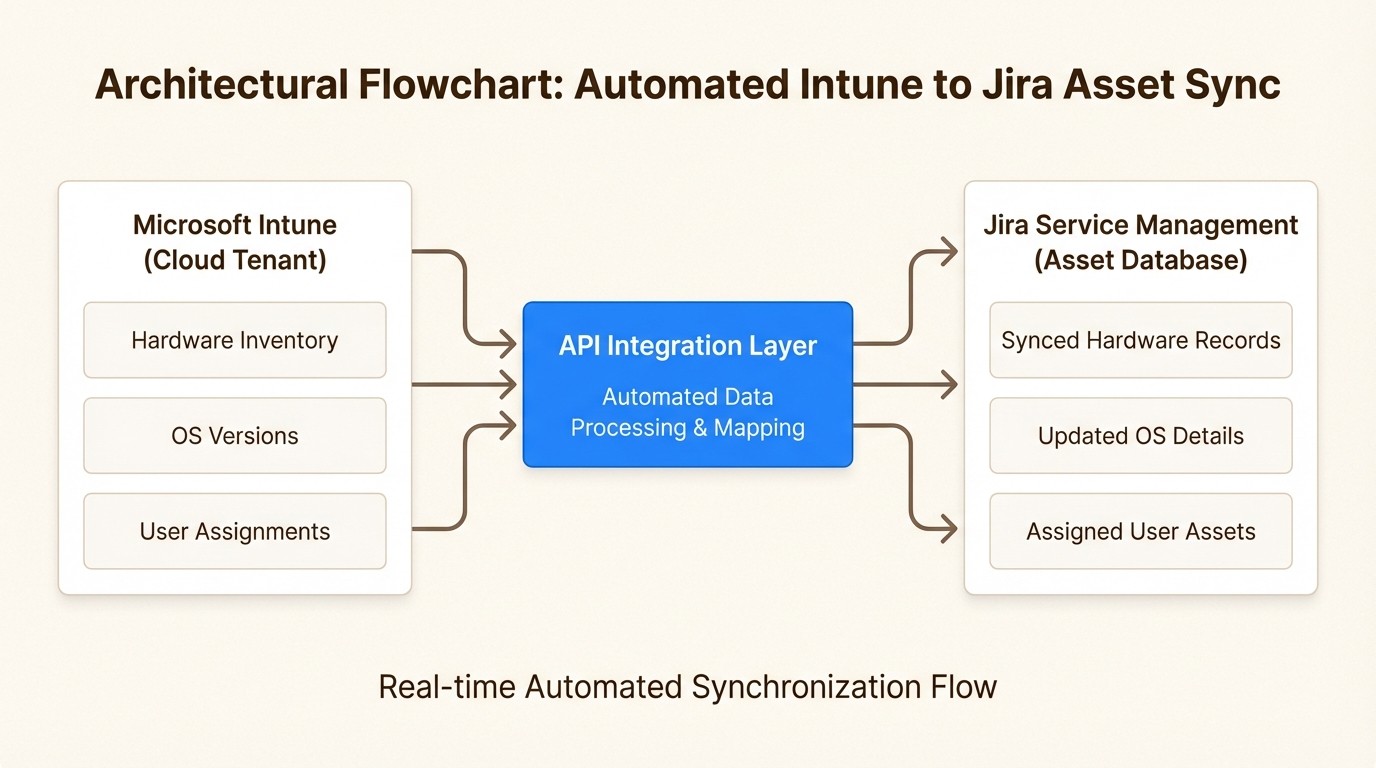
Connecting Microsoft Intune with Jira Service Management eliminates one of the most tedious tasks IT teams face: keeping asset records current. Your Intune tenant already knows about every enrolled device, its configuration, and who uses it. The problem is getting that data into Jira where your support team actually works.
Without an integration, you're stuck with manual CSV exports, outdated spreadsheets, or asking users to read serial numbers over the phone. An Intune Jira integration automates this flow, pulling device data directly into your CMDB or asset management system.
This guide walks through your integration options, provides step-by-step setup instructions, and covers best practices for maintaining accurate asset data.
Why integrate Intune with Jira Service Management?
Most IT teams struggle with the same problem: their Configuration Management Database (CMDB) is outdated the moment they finish updating it. A support technician opens a ticket about a laptop issue and spends 15 minutes just figuring out what model the user has, when it was purchased, and whether it's still under warranty.
The root cause is a disconnect between where device data lives and where support work happens. Intune manages your endpoints and knows their status, but your support team lives in Jira. Without integration, you're constantly translating between systems.
Here's what changes when you connect them:
Real-time inventory accuracy: Device data syncs automatically, so your CMDB reflects actual state instead of last month's spreadsheet
Faster ticket resolution: Support sees complete device context (model, OS version, warranty status, previous issues) without asking the user
Reduced manual work: No more quarterly inventory projects or hunting down asset information during incidents
Better compliance tracking: License and configuration data stays current, making audit preparation straightforward
The business impact is measurable. Teams using integrated asset management report resolving tickets 34% faster because technicians have immediate access to device history and specifications.
Understanding your Intune Jira integration options
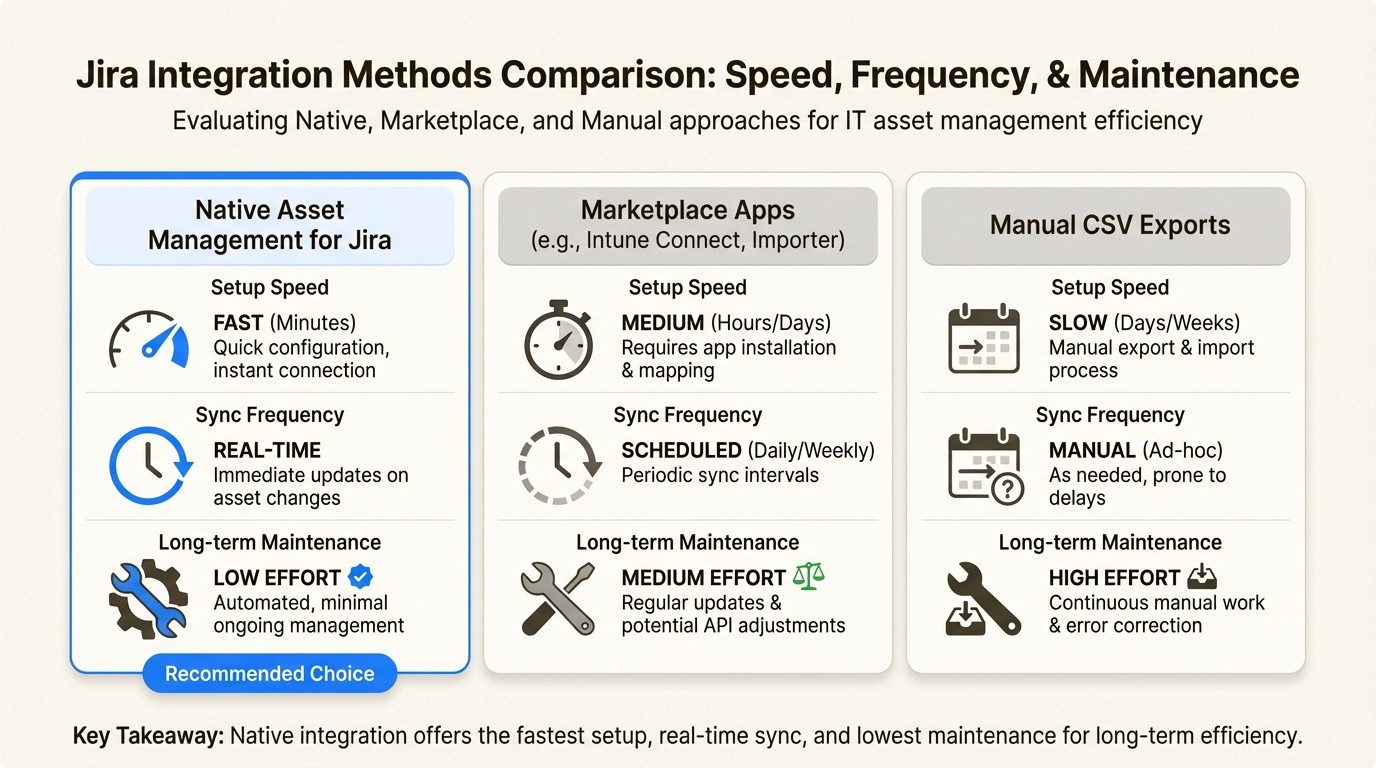
You have three main approaches for connecting Intune to Jira, each with different trade-offs:
1. Native asset management with built-in Intune sync
Solutions like Asset Management for Jira are built directly inside Jira and include Intune synchronization as a core feature. Assets live natively in Jira, accessible through JQL queries, automation rules, and gadgets.
Pros: Simplest setup, assets usable throughout Jira, no external dependencies
Cons: Requires migrating from JSM Assets if you're already using it
2. Marketplace apps for JSM Assets
Apps like Intune Connect by T4S Partners or Microsoft Intune Importer by Pio import Intune data into Jira Service Management's Assets module.
Pros: Works with existing JSM Assets setup
Cons: Additional subscription cost, more complex setup, some use deprecated platforms
3. Manual CSV imports
Export device lists from Intune and import them into Jira periodically.
Pros: No additional tools needed
Cons: Data is always outdated, time-intensive, error-prone
Here's how the approaches compare:
Approach | Setup Time | Sync Frequency | Best For |
|---|---|---|---|
Native solution (AMFJ) | 15 minutes | Every 6 hours | Teams wanting simplicity |
Intune Connect (T4S) | 1-2 hours | Hourly/Daily/Weekly | Existing JSM Assets users |
Intune Importer (Pio) | 30 minutes | Not specified | Multiple Intune tenants |
Manual CSV | Hours per update | Never real-time | One-time migrations only |
One important consideration: T4S Partners' Intune Connect is built on Atlassian's External Assets Platform, which Atlassian deprecated. If you're starting fresh, a native solution or Forge-based app avoids potential migration issues later.
How to set up Intune integration with Asset Management for Jira
Asset Management for Jira provides a five-step setup process that connects your Intune tenant and starts syncing device data automatically. The integration imports devices, users, and assignments, then keeps them current with automatic sync every 6 hours.
Prerequisites
Before starting, confirm you have:
Global Administrator access to your Intune tenant (required for initial consent)
Asset Management for Jira installed in your Jira Cloud instance
Understanding of your asset types (laptops, desktops, mobile devices) for proper mapping
Step 1: Enable the integration and authenticate
In Asset Management for Jira, navigate to the Intune integration settings and click Connect. You'll be prompted to sign in with your Microsoft account.
Grant the requested read-only permissions. The integration only needs to read device and user data, not make changes to your Intune configuration. Depending on your organization's policies, you may need to complete an admin consent process where a Global Administrator approves the application permissions in Azure AD.
Step 2: Choose default asset types
Map Intune Device Categories to asset types in Asset Management for Jira. If you have categories like "Laptop" or "Mobile Device" defined in Intune, you can map each to the corresponding asset type.
Set a fallback asset type for devices that don't match any category. This ensures all devices get imported even if they aren't perfectly categorized in Intune.
Step 3: Configure sync settings
Set the default location for imported assets. This is where devices will appear in your inventory if Intune doesn't specify a location.
Enable auto-checkout to primary users if you want devices automatically assigned to their primary Intune user. This saves manual assignment work.
Filter by ownership type to control which devices sync. You might exclude Personal/BYOD devices if you only want to track company-owned equipment.
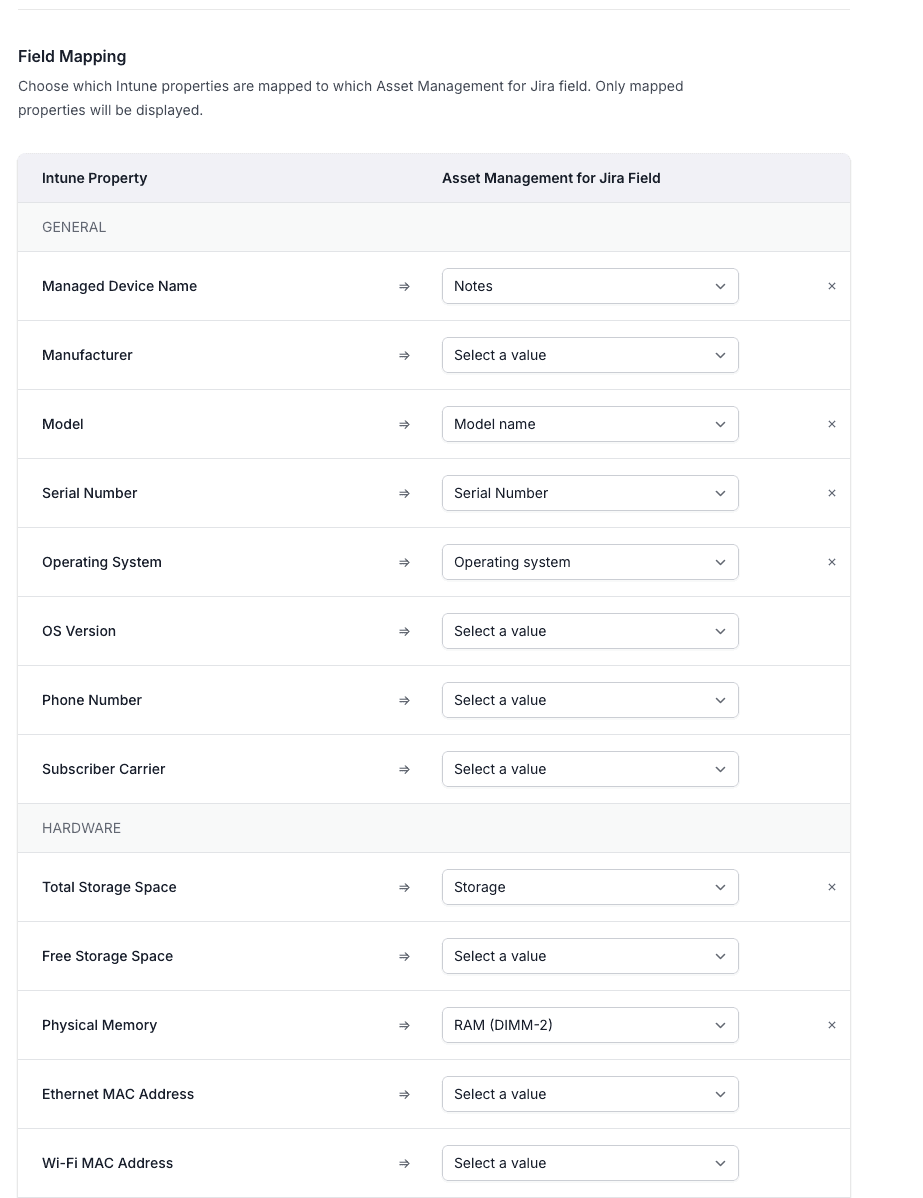
Step 4: Map Intune properties to asset fields
Map device attributes from Intune to custom fields in Asset Management for Jira. Available properties include:
Operating system and version
Manufacturer and model
Serial number
Storage and memory
Processor details
Last check-in date
Unmapped properties won't be populated, so consider which data your team needs for support and reporting.
Step 5: Run initial sync
Start the initial sync to import all existing devices from Intune. Depending on your fleet size, this may take several minutes.
Once complete, the integration automatically syncs every 6 hours. You can also trigger manual syncs anytime if you need immediate updates after bulk changes.
Alternative: Using Marketplace apps for Intune integration
If you're already using Jira Service Management Assets and prefer to stay with that platform, two Marketplace apps provide Intune connectivity.
Intune Connect for JSM Assets (T4S Partners)
Intune Connect has a 3.8/4 rating with 164 installs. It imports devices from Intune into JSM Assets with configurable sync schedules (hourly, daily, or weekly).
Key features:
Device import with automated synchronization
Real-time asset status updates
Custom attribute support
Limitations:
Currently devices only (applications and configurations are planned)
Fixed attribute mapping (you can't choose which Intune fields to import)
Built on deprecated External Assets Platform
Requires Azure AD app registration, making setup more complex
Best for: Organizations already committed to JSM Assets who need basic device import functionality.
Microsoft Intune Importer for JSM Assets (Pio)
Microsoft Intune Importer has a 4/4 rating with 485 installs and is built on Atlassian's Forge platform. It imports not just devices but also discovered applications, manufacturers, models, operating systems, and users.
Pricing:
Edition | Connections | Features |
|---|---|---|
Standard | Up to 2 | Basic import functionality |
Advanced | Unlimited | Full feature range |
Key features:
Broader data import (devices, apps, OS versions, users)
Forge platform provides enterprise-grade security
Quick setup (under 5 minutes according to documentation)
Requirements:
JSM Cloud Premium or Enterprise Plan
Active Microsoft Intune environment
Best for: Organizations needing multiple Intune connections or comprehensive data import beyond just devices.
Choosing between alternatives
Consider these factors when evaluating marketplace apps:
Setup complexity: T4S requires Azure AD app registration; Pio has a simpler setup
Data scope: Pio imports applications and users; T4S is device-only currently
Platform stability: Pio uses Forge (Atlassian's current platform); T4S uses deprecated External Assets
Pricing: Both use Atlassian Marketplace billing, but Pio has tiered editions
What data syncs from Intune to Jira?
Understanding exactly what information transfers helps you plan your asset management strategy and set appropriate expectations with your team.
Device attributes
Core hardware and software details sync automatically:
Identification: Device name, serial number, IMEI (for mobile)
Hardware: Manufacturer, model, processor, memory, storage capacity
Software: Operating system, OS version, last check-in date
Status: Compliance state, enrollment date, ownership type
User assignments
The integration maps devices to their primary users from Intune:
Primary user email and name
Department (if configured in Azure AD)
Assignment history
This linking enables support teams to see all devices assigned to a user when they open a ticket.
Software inventory
Capabilities vary by integration method. Asset Management for Jira focuses on device and user data. Pio's Intune Importer also brings in discovered applications, though this requires the Advanced edition.
For comprehensive hardware inventory tracking, you may want to supplement Intune sync with manual entry for non-computer assets like monitors and peripherals that don't appear in Intune.
Common Intune Jira integration issues and solutions
Even straightforward integrations can hit snags. Here are the most common problems and how to resolve them.
Permission and consent errors
Problem: "Insufficient privileges" or "Admin consent required" errors during setup.
Solution: Verify you're using a Global Administrator account for the initial connection. The first time you connect, Azure AD requires a Global Admin to grant consent for the application to access Intune data. After initial setup, the sync runs with read-only permissions automatically.
For multi-tenant organizations, ensure you're connecting to the correct tenant and that admin consent isn't blocked by conditional access policies.
Data mapping challenges
Problem: Devices import but appear as the wrong asset type, or custom fields remain empty.
Solution: Check that Intune Device Categories are properly configured. If devices aren't categorized in Intune, they'll all use your fallback asset type. Review the field mapping configuration to ensure Intune properties are mapped to the correct custom fields. Remember that unmapped properties don't transfer.
Duplicate asset creation
Problem: The same device appears multiple times in your asset inventory.
Solution: This usually happens when the matching criteria aren't set correctly. Ensure you're using a unique identifier (like serial number or Intune Device ID) as the matching key. If you previously imported devices manually, you may need to clean up duplicates and let the integration create fresh records with proper linking.
Sync failures
Problem: Scheduled syncs stop working or manual syncs fail.
Solution: Check these common causes:
Authentication token expiration: Re-authenticate the connection
API rate limiting: Large fleets may hit Microsoft's API limits; spread syncs across longer intervals
Network connectivity: Ensure your Jira instance can reach Microsoft's endpoints
Best practices for Intune Jira integration
Getting the integration running is just the start. These practices help you maintain accurate data and get the most value.
Start with a pilot group
Before syncing your entire fleet, test with a single device group or department. This lets you verify field mappings, asset types, and sync behavior without affecting your full inventory. Once you're satisfied with the configuration, expand to all devices.
Establish naming conventions
Consistent naming in Intune makes asset management easier. If your Intune device names follow a pattern (like "DEPT-USERNAME-MODEL"), you can parse this information into custom fields for better filtering and reporting.
Regular audit of synced vs. actual
Monthly, compare your Intune device count to your Jira asset count. Discrepancies indicate sync issues or devices that aren't properly enrolled in Intune. A quick audit catches problems before they affect support workflows.
Document field mapping decisions
When you map Intune properties to asset fields, document why you made each choice. Future administrators (or your future self) will need to understand the logic when adding new fields or troubleshooting data issues.
Train support staff
The integration only helps if your support team knows how to use it. Show them how to:
View asset details from tickets
Search for devices by user, serial number, or model
Update asset status when devices are retired or reassigned
For broader IT asset inventory management strategies, consider how Intune-synced devices fit into your overall asset lifecycle process.
Start automating your IT asset management today
An Intune Jira integration transforms how your team handles device-related support. Instead of hunting for information across multiple systems, everything lives where your team already works. Device data stays current automatically, tickets get resolved faster, and your CMDB becomes a reliable source of truth.
The setup process is straightforward with the right tool. Asset Management for Jira connects to Intune in about 15 minutes, imports your existing devices, and keeps everything synchronized with zero ongoing maintenance. At $10 per month for small teams and volume pricing for larger organizations, it's a cost-effective alternative to complex enterprise CMDBs.
If you're evaluating options, start with the full feature tour to see how native Jira asset management compares to external tools. The 30-day free trial lets you test the Intune integration with your actual device data before committing.
Frequently Asked Questions
What permissions does an Intune Jira integration require?
The integration needs read-only access to your Intune tenant to pull device and user data. Initial setup requires a Global Administrator to grant admin consent in Azure AD. After setup, the integration uses its own authentication tokens and doesn't require ongoing admin access.
How often does data sync between Intune and Jira?
Sync frequency depends on your integration method. Asset Management for Jira syncs every 6 hours automatically. T4S Partners' Intune Connect offers hourly, daily, or weekly options. Pio's Intune Importer doesn't specify exact intervals in their documentation. All methods support manual sync triggers when you need immediate updates.
Can I filter which devices sync from Intune to Jira?
Yes, most integrations support filtering. Asset Management for Jira lets you filter by ownership type (Company vs. Personal/BYOD) so you only track corporate devices. You can also use Intune Device Categories to control which devices import and what asset type they become.
What happens to assets when a device is retired from Intune?
Behavior varies by integration. Most solutions keep the asset record in Jira but update its status to reflect the device is no longer managed. This preserves historical data for audit purposes while clearly indicating the device is no longer active. You can configure automation rules to handle retired devices based on your policies.
Do I need Jira Service Management Premium to use Intune integration?
Not necessarily. Marketplace apps like T4S Partners' Intune Connect and Pio's Intune Importer require JSM Cloud Premium or Enterprise. However, native solutions like Asset Management for Jira work with standard Jira Cloud and don't require JSM Assets or Premium licensing.
Can I map custom Intune attributes to Jira asset fields?
It depends on the integration. Asset Management for Jira supports fully customizable field mapping, letting you choose which Intune properties populate which asset fields. T4S Partners' Intune Connect uses fixed attribute mapping where you can't select specific fields. Check your chosen solution's documentation for exact capabilities.