Sync Intune Devices to Jira Automatically: Setup and Configuration Guide
This guide walks you through setting up Intune device sync in Asset Management for Jira in about 15 minutes. By the end, your device inventory will be live and automatically updating.

Colin Reed
IT Expert and Content Writer
Last Updated

Manually tracking IT assets in spreadsheets is outdated. Every time an employee gets a new device or leaves your organization, someone has to remember to update a spreadsheet. It's slow, error-prone, and takes time away from actual IT work.
Automatic Intune-to-Jira synchronization eliminates that manual work. Your asset inventory stays fresh every 6 hours without anyone lifting a finger. Users automatically stay assigned to their devices. You get a real-time source of truth instead of yesterday's spreadsheet.

What you'll need
Before starting, make sure you have:
Active Jira Cloud instance with Asset Management for Jira already installed
Microsoft Intune tenant (you'll need Global Administrator access initially)
Azure AD application registration (or an IT team member to help with this)
Basic familiarity with the Azure AD portal
About 15 minutes of uninterrupted time
You don't need to be an Azure expert. The process is straightforward if you follow each step in order.
Step 1: Grant permissions in Azure AD
Your Intune data is protected by Azure permissions. Before Jira can access anything, you need to register an application in Azure AD and grant it read-only access.
Here's what happens behind the scenes: AMFJ doesn't store your credentials. Instead, it gets an access token that says "this app can READ device and user data from Intune, but can't modify anything." You're in control the whole time.
Get your tenant ID and create the app registration:
Go to the Azure Portal (portal.azure.com). You'll need to be signed in with an account that has Global Administrator permissions.
Navigate to Azure Active Directory (Entra ID) > App registrations > New registration. Give it a name like "Asset Management for Jira". Leave Redirect URI blank for now. Click Register.
Once registered, you'll see an Application (client) ID and Directory (tenant) ID. Copy both you'll need them shortly.
Create a client secret:
In your new app's settings, go to Certificates & secrets > New client secret. Give it a description like "AMFJ Intune Sync" and set expiration to 24 months. Copy the secret value immediately (you won't be able to see it again).
Assign the right permissions:
Go to API permissions > Add a permission > Microsoft Graph. Select Application permissions (not Delegated). Search for and add:
DeviceManagementManagedDevices.Read.AllUsers.Read.All
Click Add permissions. Then click Grant admin consent. You'll see a green checkmark once it's done.
That's it for Azure. You now have the credentials AMFJ needs to safely read your Intune data.
Step 2: Connect your Intune tenant to Asset Management for Jira
Now you'll use those credentials to connect Jira to Intune.
In Jira, go to your instance settings and find Asset Management. Look for the Intune Integration section. You'll see a "Connect to Intune" button.
Click it. You'll be redirected to a Microsoft sign-in page. Sign in with an account that has Global Administrator access to your Intune tenant. You'll be asked to grant permissions click Accept.
You're back in Jira. AMFJ now has permission to read your Intune data.
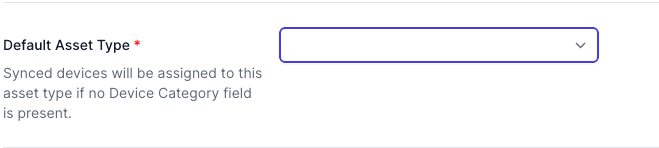
Step 3: Set your default asset type
When devices sync from Intune to Jira, they need a type. Is it a laptop? A phone? A tablet?
AMFJ looks for this information in Intune's Device Category field. If a device has a category set, it uses that. If not, it falls back to your default.
Choose a default asset type:
In the Intune settings, select a default asset type from the dropdown. Pick something broad like "Device" or "Computer" that covers most of your hardware.
Best practice: Before running your first sync, set the Device Category field in Intune for your devices. Go to Intune > Devices > Manage devices > Device categories. Assign categories like "Windows Laptop", "MacBook", "iPad", etc. This makes your synced inventory much more useful.
Step 4: Configure sync behavior
This is where you fine-tune how Intune data lands in Jira. Three key settings:
Default location:
Where should synced assets appear in your Jira asset hierarchy? Choose a location that mirrors your office structure (e.g., "New York Office" or "EMEA Region"). New devices will default to this location. You can move them later if needed.
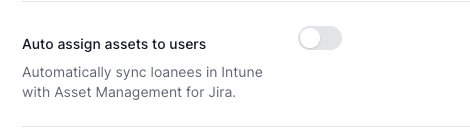
Auto-checkout to primary user:
When enabled, AMFJ automatically assigns devices to their primary user in Intune. If that user changes in Intune, the assignment updates automatically in Jira.
How it matches users: AMFJ looks for a matching User record using User ID first, then email address. If it finds a match, the device gets assigned. If not, it creates a new User record.
Recommendation: Turn this ON. Intune is authoritative for device ownership, so let Jira stay in sync automatically.
Ownership type filtering:
Some organizations support Bring Your Own Device (BYOD). Your personal laptop might be managed by Intune, but do you really want it in your IT asset inventory alongside company laptops?
Use this setting to exclude personal devices. Check "Company-owned" and uncheck "Personal". Only company-managed devices sync to Jira.
Step 5: Map Intune fields to Asset Management for Jira
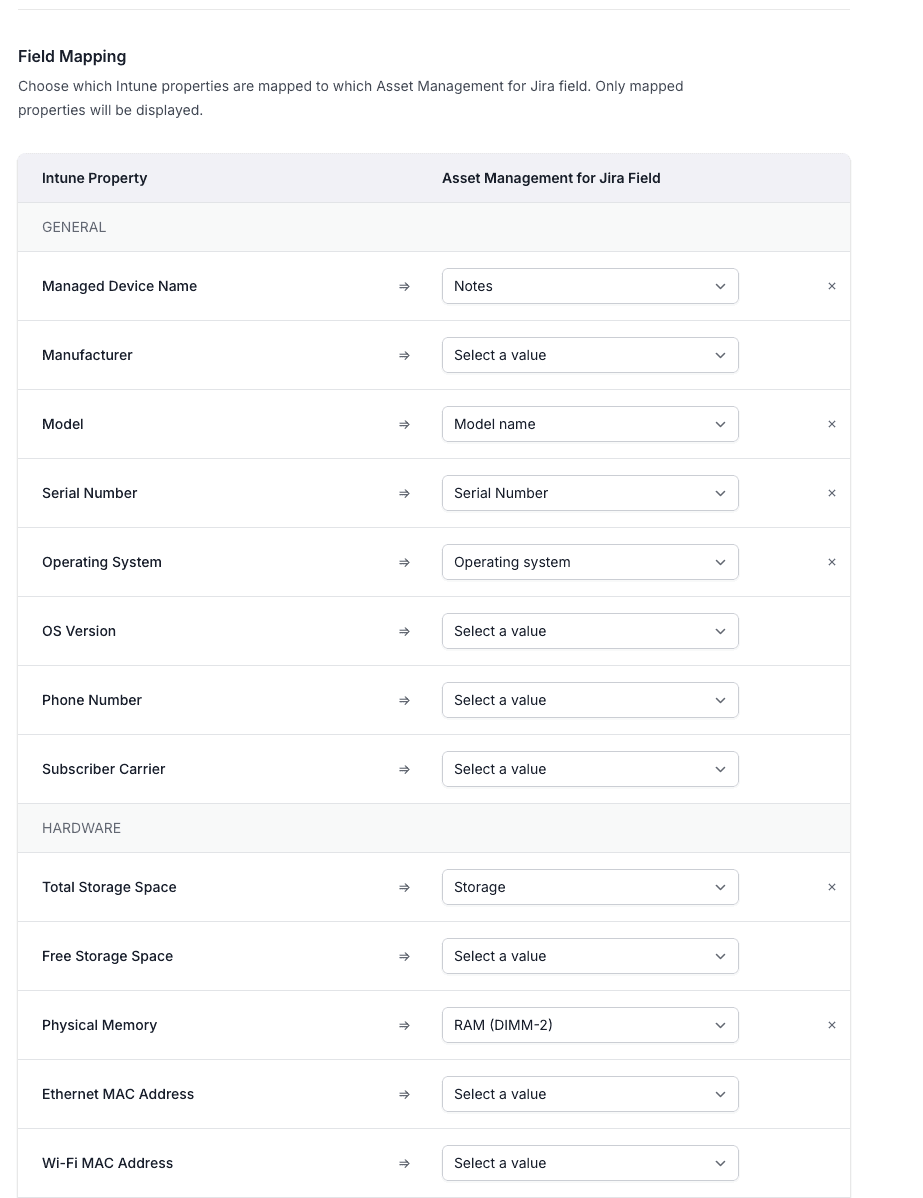
This step is optional but important if you want rich device data in Jira.
Intune has dozens of data points for each device: serial number, OS version, storage capacity, enrollment date, compliance status, and more. AMFJ can map these to custom fields in your asset records.
For example, you might map:
Intune's Serial Number field to Jira's Serial Number field
Intune's OS Version to a custom "OS Version" field
Intune's Enrollment Date to a "Deployment Date" field
Only map fields you'll actually use for filtering, reporting, or troubleshooting in Jira. Unmapped fields simply don't get imported, which is fine.
Step 6: Trigger and monitor first sync
You've configured everything. Time to sync.
Click the Save button at the bottom of your Intune settings. This triggers the first sync immediately.
What happens next: AMFJ pulls ALL devices from your Intune tenant and creates asset records in Jira. This can take a few minutes depending on how many devices you have (100 devices? A few seconds. 10,000 devices? A few minutes).
After the first sync completes, AMFJ syncs automatically every 6 hours. Changes in Intune new devices, user reassignments, device status updates appear in Jira within 6 hours.
How to verify it worked:
Open your Asset Management dashboard. Check the asset count. Did it increase? Good sign. Click on a few device records. Do they have names, OS versions, and user assignments from Intune? Perfect.
If nothing shows up, check your ownership type filter. Did you accidentally exclude all devices? Go back and make sure you've enabled the ownership types you actually have.
Common configuration mistakes to avoid
Mistake 1: Not setting Device Category in Intune first
Result: All your synced devices get the generic default type instead of useful categories.
Fix: Before syncing, go to Intune and assign Device Categories to your devices. Then re-run the sync.
Mistake 2: Filtering out all ownership types
Result: No devices sync at all.
Fix: Make sure at least one ownership type checkbox is enabled (Company-owned, Personal, etc.).
Mistake 3: Forgetting to grant admin consent
Result: Sync fails silently with permission errors.
Fix: In Azure AD, go back to the app's API permissions and explicitly click "Grant admin consent". You should see a green checkmark.
Mistake 4: Wrong default location
Result: All devices sync to an unexpected location in your Jira asset hierarchy.
Fix: Manually move them in Jira, then update the default location for future syncs.
Mistake 5: Not mapping critical fields
Result: You lose useful data (serial numbers, OS versions, etc.) that would help with troubleshooting.
Fix: At minimum, map Serial Number and OS Version. Add more if your team uses that data.
Best practices for Intune-to-Jira sync
Sync frequency: The 6-hour cycle works for most teams. It's a good balance between freshness and system load. If your devices change frequently (like a call center refreshing hardware), 6 hours is acceptable. If you need real-time updates, consider the Intune Connect app (syncs hourly), but it requires JSM Premium with Assets.
User assignment strategy: Enable auto-checkout. This keeps device ownership in sync with Intune automatically. When someone leaves, Intune removes them from devices, and Jira follows suit automatically. No manual cleanup needed.
Ownership filtering: Start by excluding BYOD devices if your organization supports them. As your process matures, you can decide whether to track personal devices.
Field mapping strategy: Less is more. Map only the fields your team actually uses. Too many fields make maintenance harder and clutter your asset view. Start with Name, OS, Manufacturer, and Serial Number. Add others based on what your support team needs for troubleshooting.
Testing before full rollout: If you're anxious about the initial sync, test with a small device group first. Use the ownership type filter to import only company-owned devices from one department. Verify the data looks right. Then expand to all devices.
Troubleshooting: Common sync issues
"Sync hasn't happened in over 6 hours"
Syncs can fail silently if permissions expire or the connection breaks. Try manually triggering a sync:
Go back to Intune settings in AMFJ
Click Save (this re-runs the sync immediately)
Check the status indicator
If it still fails after 10 minutes, your permissions may have expired. Go back to Step 1 and refresh your Azure AD credentials.
"Devices imported but no user assignments"
This happens when AMFJ can't match Intune users to Jira users.
Root cause: Intune and Jira user lists are out of sync. The user exists in Intune but not in Jira yet.
Workaround: Sync your Entra ID/Azure AD to Jira first (use Jira's directory sync or a separate tool). Then re-run the Intune sync.
"Some devices missing or categorized as Unknown"
Root cause: Device Category not set in Intune.
Solution: In Intune, go to Device Categories and assign categories to your devices. Then re-run the sync. Devices will get proper categories instead of "Unknown".
"Sync keeps stopping after 2 minutes"
This is rare but usually means an API timeout or permission issue.
Check your AMFJ logs for "API Timeout" errors. If you see them:
Go to your Intune settings
Check if permissions are still valid (sometimes they expire silently)
Re-authenticate by clicking the Connect button again
Manually trigger a sync
If problems persist, reach out to AMFJ support at support@assetmanagementforjira.com.
"Too much data syncing; sync is slow"
If you have 10,000+ devices, the sync can take several minutes. This is normal.
To speed things up:
Use the Ownership Type filter to exclude BYOD devices
In Intune, use Device Groups to limit which devices sync (if supported by your version)
Reduce the number of custom fields you're mapping
Start automatically syncing Intune devices to Jira today
You've now set up automatic device synchronization. Your Intune inventory is live in Jira, staying fresh every 6 hours without manual work. Users are assigned to their devices automatically. Your support team has instant access to device details when resolving tickets.
From here, you can:
Build Jira JQL filters to visualize your fleet (e.g., "All MacBooks updated in the last 30 days")
Create Jira automations that tag devices by type or age
Link synced devices to support tickets for faster troubleshooting context
Build dashboards showing device inventory trends and compliance status
Set up automated reminders for aging hardware (devices older than 4 years)
The foundation is in place. Asset Management for Jira handles the sync automatically. You're free to focus on what matters: supporting your users, not managing spreadsheets.
Frequently Asked Questions
Can we sync only certain devices, or does everything from Intune import?
You can filter by ownership type (Company vs. Personal), but AMFJ will import all devices matching your filter from Intune. If you need more granular filtering (e.g., only Windows devices, or only devices from New York), you can achieve this using Intune device groups or post-sync Jira automation to exclude specific records.
What happens to synced devices if we delete them from Intune?
Deleted Intune devices stay in Jira (they're not automatically deleted). You can manually delete them in Jira or mark them as retired. This is intentional it preserves your audit trail of past devices.
How often does the sync to Jira automatically update?
Every 6 hours automatically. You can manually trigger an update at any time by clicking Save in the Intune settings. If you need faster updates (hourly or more frequent), consider the Intune Connect marketplace app from T4S Partners, which offers flexible scheduling.
Do we need Global Administrator permissions every time?
No. Global Administrator is only needed for initial setup (Step 1). Once the Azure app is registered and permissions are granted, AMFJ uses its app credentials to sync automatically. No admin involvement needed after setup.
Can Jira push changes back to Intune?
No. The sync is read-only from Intune. Intune is the authoritative source. If you change a device assignment in Jira, it won't update Intune. This is by design Intune remains the single source of truth, preventing conflicting data.
What data fields from Intune actually sync to Jira?
By default, device name, OS, manufacturer, model, storage, user assignment, and enrollment date. You can map additional fields (serial number, compliance status, last sync date, etc.) during field mapping in Step 5. Check the field mapping interface for the complete list of available Intune fields.
What if we have multiple Intune tenants?
Each Asset Management for Jira instance syncs with one Intune tenant only. If you have multiple tenants (e.g., separate tenants for different business units), you'd need separate Jira instances or a workaround via the Data Manager adapter (which is more complex but can handle multiple sources).