Intune wipe vs fresh start: Which reset option is right for your devices?
Unsure whether to use an Intune wipe or a fresh start? This detailed comparison explains when to use each reset option for scenarios like repurposing or performance.

Colin Reed
IT Expert and Content Writer
Last Updated
If you're managing a fleet of devices, you're probably already familiar with Microsoft Intune. It's a powerful tool that lets you oversee the entire device lifecycle, from the moment a new laptop is unboxed to the day it's retired. But with all that power, a bit of confusion can creep in, especially when it’s time to hit the reset button.
One of the most common issues for IT teams is figuring out the difference between an Intune wipe vs fresh start. On the surface, they both sound like they do the same thing: reset a device. But once you dig in, you'll find they're designed for completely different situations.
Picking the right option is more than just a technical detail. It’s about keeping your company’s data secure, making sure devices run smoothly, and giving your team a frustration-free experience. This guide will break down exactly what each action does, when to use it, and how these decisions fit into your bigger IT asset management strategy. Let’s clear things up.
What is an Intune wipe?
Think of an Intune Wipe as the most comprehensive reset option. It’s a remote command that restores a device to its factory default settings, just like it was on the day you first took it out of the box.
When you trigger a wipe, you're getting rid of everything: all user accounts, personal and company data, applications, and any settings or policies that were pushed to it via your mobile device management (MDM) solution. It’s a complete and total reset.
According to the official Microsoft Intune documentation, you have a few flavors of Wipe to choose from:
Standard Wipe: This is the default. It erases all data and settings, and the device will no longer be managed by Intune.
Wipe device, but keep enrollment state and associated user account: This is a handy option if you want to reset the device but keep it managed by Intune for the same user. It wipes the device but preserves the user's data and keeps it in the system.
Wipe device, and continue to wipe even if device loses power: For high-stakes situations like a lost or stolen device, this option is highly effective. It makes sure the wipe command keeps trying to execute until it's successful, even if someone tries to shut the device down to stop it.
The easiest way to think about it is this: a Wipe is like doing a full factory reset on your phone. It’s the go-to move when security is the top priority or when you're preparing a device for a brand-new user.
What is an Intune fresh start?
If a Wipe is a full demolition, a Fresh Start is more like a strategic renovation. It’s a less drastic remote action designed to refresh a Windows device without completely erasing everything.
The main reason you'd use Fresh Start is to get rid of all the pre-installed applications that device manufacturers love to load onto new machines. You know the ones—the weird games, trial software, and branded utilities that just slow things down. Microsoft's documentation confirms this is its primary purpose: to remove "bloatware" for a cleaner, faster experience.
A Fresh Start always keeps the device enrolled in Azure Active Directory and managed by Intune. It’s not meant for offboarding a user; it's for improving the device for the person who’s already using it.
There's one very important checkbox you'll see: "Retain user data on this device." If you select this, Fresh Start will preserve all the files and folders inside the user's Home folder. It still removes applications and settings, but their precious documents, downloads, and desktop files will be safe.
A good analogy for a Fresh Start is a deep spring cleaning. You’re not throwing out the furniture and starting over. You're just decluttering, getting rid of the junk, and making the space feel brand new again for the person who lives there.
Key differences: A side-by-side comparison
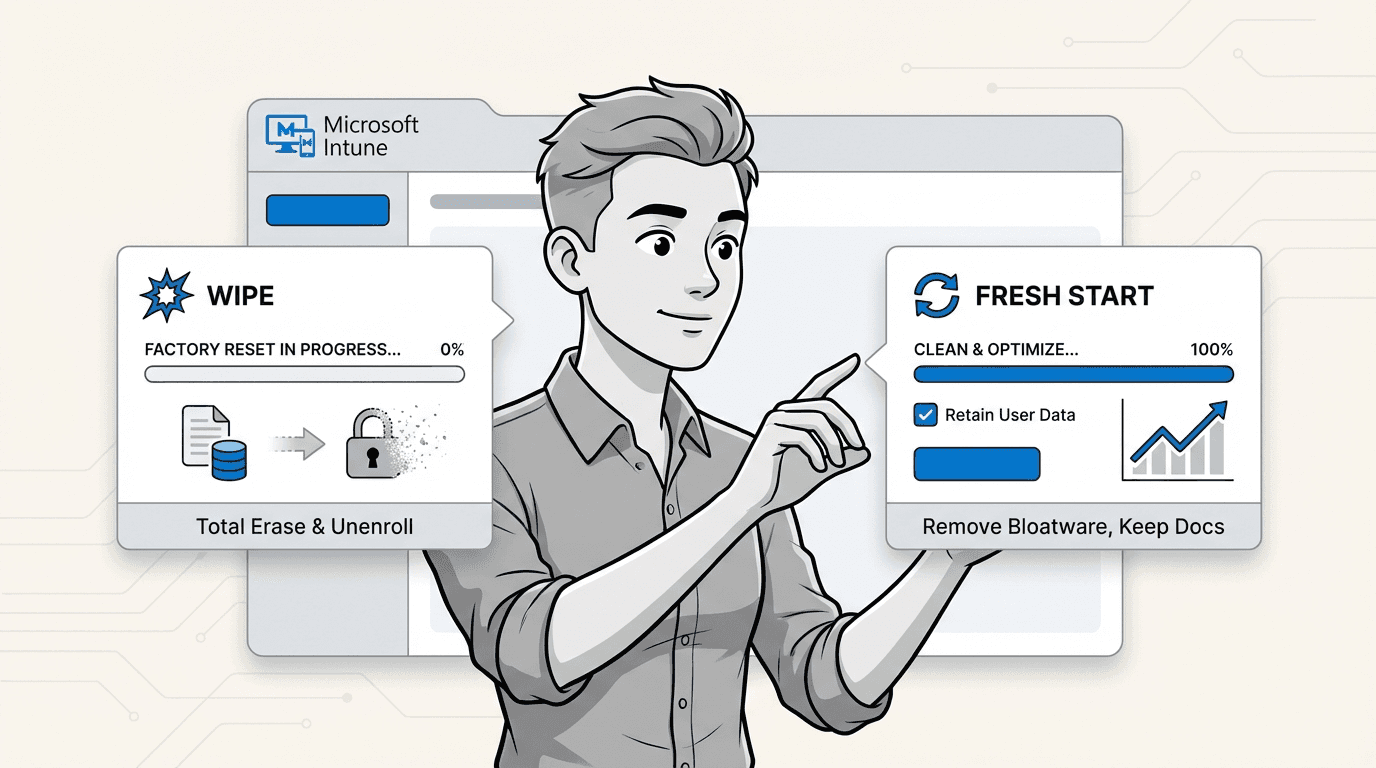
Alright, let's put them head-to-head. While both actions hit the reset button in some way, the right choice depends on your goal. Are you trying to secure a lost device, improve a slow one, or get a laptop ready for a new hire? Your answer will point you in the right direction. This visual guide breaks down the key differences at a glance.
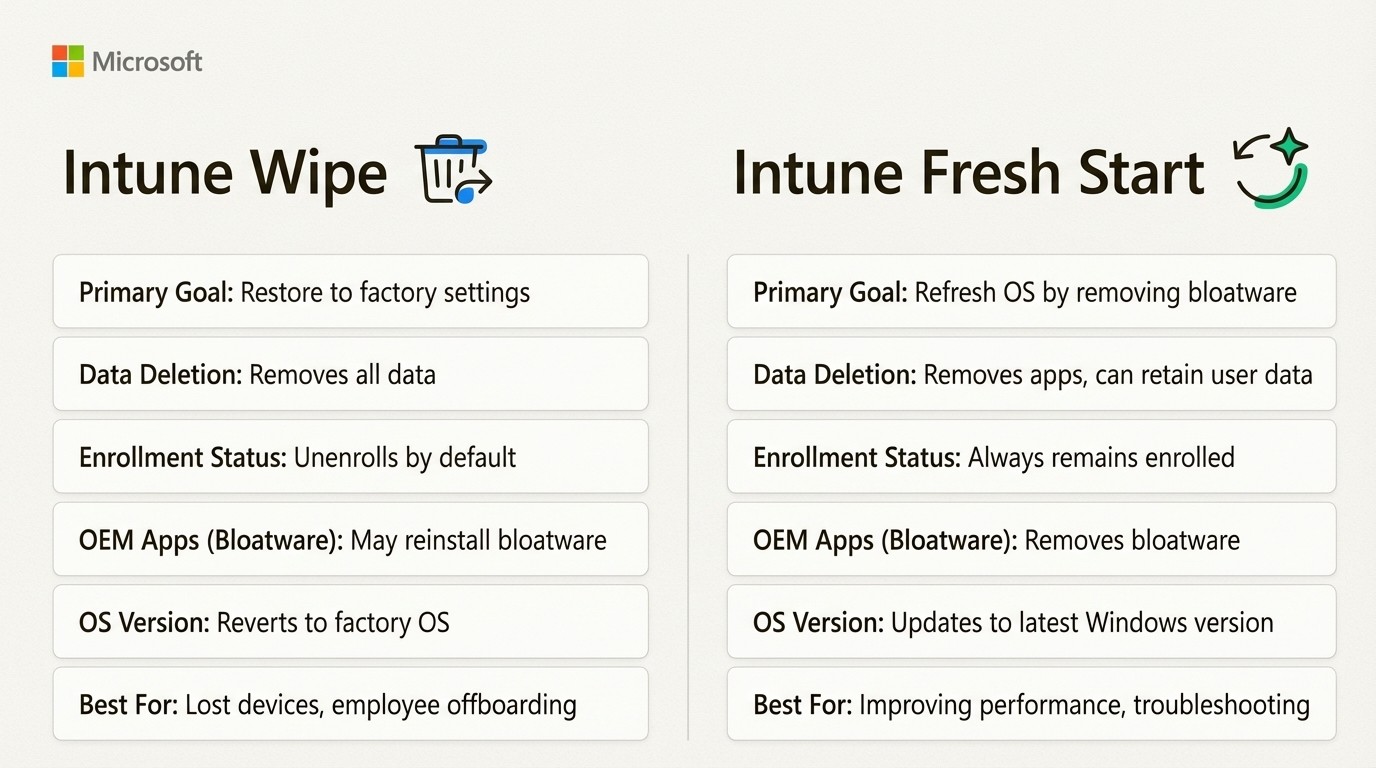
An infographic comparing the features and best use cases for an Intune Wipe vs Fresh Start, covering data deletion, enrollment status, and handling of bloatware.
Here’s a simple breakdown of how they compare:
Feature | Intune Wipe | Intune Fresh Start |
|---|---|---|
Primary Goal | Restore a device to factory settings, erasing all data and settings. | Refresh the OS by removing bloatware and apps, while keeping the device managed. |
Data Deletion | Removes all data, apps, and settings. Can optionally retain user data if the specific "keep user account" option is selected. | Removes apps and settings. Can optionally retain the contents of the user's Home folder. |
Enrollment Status | Unenrolls from Intune & Azure AD by default. Can optionally retain enrollment. | Always remains enrolled in Intune & Azure AD. |
OEM Apps (Bloatware) | Reinstalls the factory image, which may bring back OEM bloatware. | Specifically designed to remove OEM bloatware for a clean OS install. |
OS Version | Reverts to the device's original factory OS version. | Updates the device to the latest version of Windows. |
Best For | Lost/stolen devices, employee offboarding, reassigning a device to a new user. | Improving performance for a current user, troubleshooting persistent software issues. |
Let's zoom in on a few of those distinctions. The way each handles data is a huge one. A Wipe is built for data destruction, ensuring nothing is left behind when a device changes hands or is lost. A Fresh Start, especially with the "retain user data" option, is designed to be as minimally disruptive as possible for the current user.
Enrollment status is another key difference. A Wipe effectively boots the device out of your management system, while a Fresh Start ensures it stays under your control. This makes a Wipe perfect for offboarding and a Fresh Start ideal for ongoing maintenance.
Finally, that pesky bloatware. It’s ironic, but a full Wipe might actually bring back all the junk software the manufacturer installed in the first place. A Fresh Start is specifically designed to get rid of it, which can make a huge difference for device performance.
When to use an Intune wipe
A Wipe is a powerful action. It's the right call when you need absolute certainty that a device is clean and secure. Here are the most common scenarios.
Lost or stolen devices
The second a device containing company data goes missing or you suspect it's been compromised, a Wipe is the first and best line of defense. It's the fastest way to remotely erase the data on that device and prevent it from falling into the wrong hands.
Remember that "continue to wipe even if device loses power" option? This is where it is most useful. It gives you an extra layer of security, ensuring that even if the device is turned off, the wipe command will be waiting for it the next time it connects to the internet.
Repurposing devices
When an employee leaves the company and returns their laptop, a Wipe is a standard offboarding process. It guarantees that the device is a completely clean slate for the next person. You don't have to worry about any leftover files, settings, or potential data privacy issues.
This ensures the new hire gets that fresh, out-of-the-box experience, and your IT team can be confident they’re starting with a secure, standardized machine.
End-of-life decommissioning
Every piece of hardware eventually reaches the end of its useful life. Before that old laptop is sold, recycled, or sent to a landfill, a full Wipe is an absolute must. This is a non-negotiable step in the final "Disposal" stage of the asset management life cycle.
Tracking these lifecycle stages is crucial for audit trails and compliance. For teams already working in Jira, managing this in a separate spreadsheet can lead to errors. Having a tool built into your service desk can be beneficial. A native solution like Asset Management for Jira lets you log every action, from deployment to wipe to disposal, directly against the asset's record. It connects the support ticket that kicked off the process to the asset’s entire history, all in one place.
When to use an Intune fresh start
A Fresh Start is your go-to for maintenance and troubleshooting, not security. It’s a more efficient and user-friendly option when the goal is to fix a problem for the current user, not prepare the device for a new one.
Boosting device performance
This is the number one reason to use Fresh Start. Over time, devices can get bogged down by all the extra software that comes pre-installed from the manufacturer. If a user is complaining that their brand-new, top-of-the-line laptop is running like it's from 2010, bloatware is often the culprit.
A Fresh Start removes all those unwanted apps and gives the user a clean installation of Windows, often resulting in a significant performance boost. It is an efficient solution that can improve a user's experience without the hassle of a full wipe and re-enrollment.
Refreshing a device for a current user
Sometimes, a device just gets… weird. Maybe there are persistent software bugs, conflicting applications, or mysterious glitches that a simple restart won't fix.
Fresh Start is the perfect middle ground for these situations. By choosing to "retain user data," you can reinstall a clean version of Windows while keeping the user's most important files right where they left them in their Home folder. It solves the technical problem with minimal disruption to their workflow.
Other essential Intune actions
Just to make sure we've covered all the bases, there are a couple of other remote actions in Intune—Retire and Delete—that are important to know about. Understanding what they do can help you avoid using a Wipe or Fresh Start when a simpler option will do.
Intune retire
The Retire action is primarily for personal devices, or Bring-Your-Own-Device (BYOD) scenarios.
According to Microsoft's documentation, when you retire a device, Intune selectively removes only the company data, apps, and settings.
It leaves all the user's personal stuff—photos, documents, apps—completely untouched before unenrolling the device from management. It’s the perfect way to respectfully separate company assets from a personal device when an employee leaves.
Intune delete
Delete is the simplest action of all, and it’s purely for housekeeping. When you delete a device from the Intune portal, it sends no command to the device itself. The device doesn’t wipe, retire, or reset.
All this action does is remove the record from your Intune admin center. It's useful for cleaning up your dashboard by getting rid of old or inactive records that you no longer need to manage.
Integrating Intune resets into your ITAM workflow
Choosing between a Wipe and a Fresh Start is a tactical decision, but it should be guided by your overall IT asset management (ITAM) strategy. Actions like these are key events in the five stages of the asset management life cycle: Planning, Acquisition, Operation, Maintenance, and Disposal. A Wipe, for instance, is a critical part of the Maintenance, Disposal, or repurposing stage.
Tracking these important events in a spreadsheet can be challenging. Without a clear audit trail, it is difficult to maintain visibility. The history of an asset—every repair, every user assignment, every reset—provides valuable context for future support tickets and financial planning.
Integrating your asset data directly into your service desk can be beneficial. A native tool like Asset Management for Jira embeds the entire asset lifecycle right inside Jira. When a request comes in to decommission a laptop, you can link that ticket directly to the asset, log the Wipe action, update its status, and maintain a complete, unbroken history. It creates a single source of truth, streamlining everything from the initial user request to the final device reset.
Seeing these actions performed can help solidify your understanding. For a practical demonstration of how to execute these commands within the Microsoft Intune portal, check out the video below.
This video demonstrates how to execute restart, retire, and wipe commands from the Microsoft Intune portal.
Summary of Intune reset options
So, there you have it. The debate over Intune wipe vs fresh start isn't so complicated after all. It just comes down to what you’re trying to accomplish.
Let’s recap the main points:
Wipe is a full factory reset. Use it for maximum security when a device is lost, stolen, or being repurposed for a new user.
Fresh Start is a performance-boosting refresh. Use it to remove bloatware and fix software issues for an existing user, often while keeping their data intact.
Retire and Delete are your other tools in the box. Retire is for cleanly removing company data from personal BYOD devices, and Delete is for simple admin cleanup.
Knowing the difference doesn't just make you a smarter IT admin. It saves you time, protects your company's data, and keeps your team productive and happy.