How to track IT assets in Jira: A step-by-step guide for IT teams
This guide walks you through setting up asset tracking in Jira. We'll cover the most common approach using Jira Service Management Assets, which is now available on Standard plans and above. If you are on a lower tier or want a simpler alternative, we will also look at other options.

Colin Reed
IT Expert and Content Writer
Last Updated
If your IT team still tracks assets in spreadsheets, you know the pain. Equipment disappears, license counts are guesses, and when someone submits a ticket about a broken laptop, you spend 20 minutes just figuring out which device they mean.
Tracking IT assets in Jira changes that. Instead of hunting through files and emails, you have instant visibility into what you own, where it is, and who has it. When an employee submits a support request, the asset information is right there on the ticket. No context switching. No "let me get back to you after I check the spreadsheet."
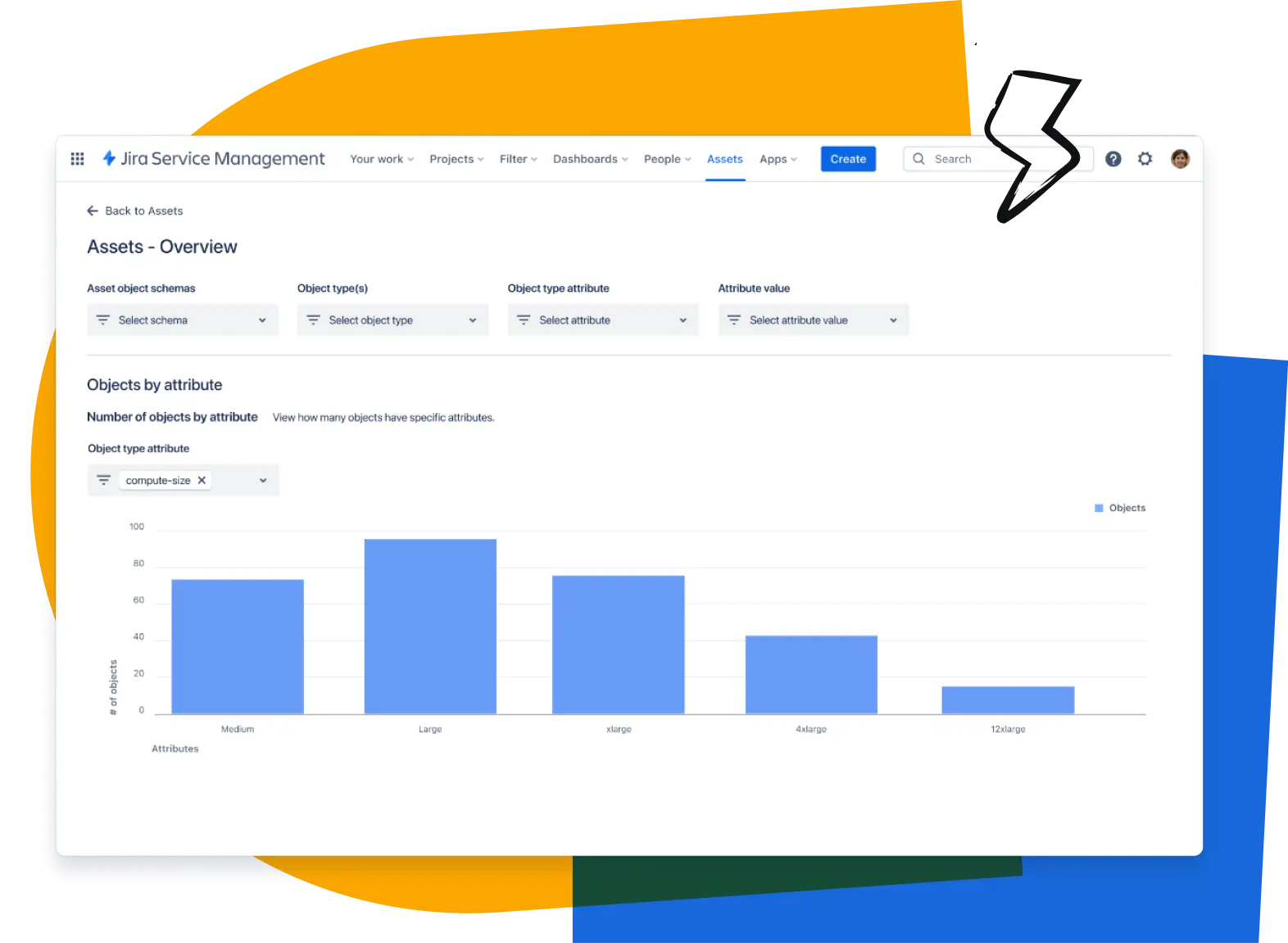
Step 1: Create your object schema
An object schema is the container for your asset data. Think of it like a database that holds all your asset types and the relationships between them.
To create one:
Navigate to Assets in the top navigation bar of Jira Service Management
Select Object schemas
Click Create object schema in the top right
Enter a name (like "IT Assets"), a unique key (like "ITA"), and a description
Click Create
Atlassian provides pre-built templates for common use cases like IT Asset Management, People, and Facilities. These templates come with pre-defined object types and attributes, which can speed up your setup significantly. If you are not sure where to start, the IT Asset Management template gives you a solid foundation with object types for Hardware, Software, and Network Equipment already configured.
Step 2: Define your object types and attributes
Object types are categories of assets. Within your schema, you might have object types for Laptops, Monitors, Software Licenses, and Servers. Each object type has attributes that define what data you track for that category.
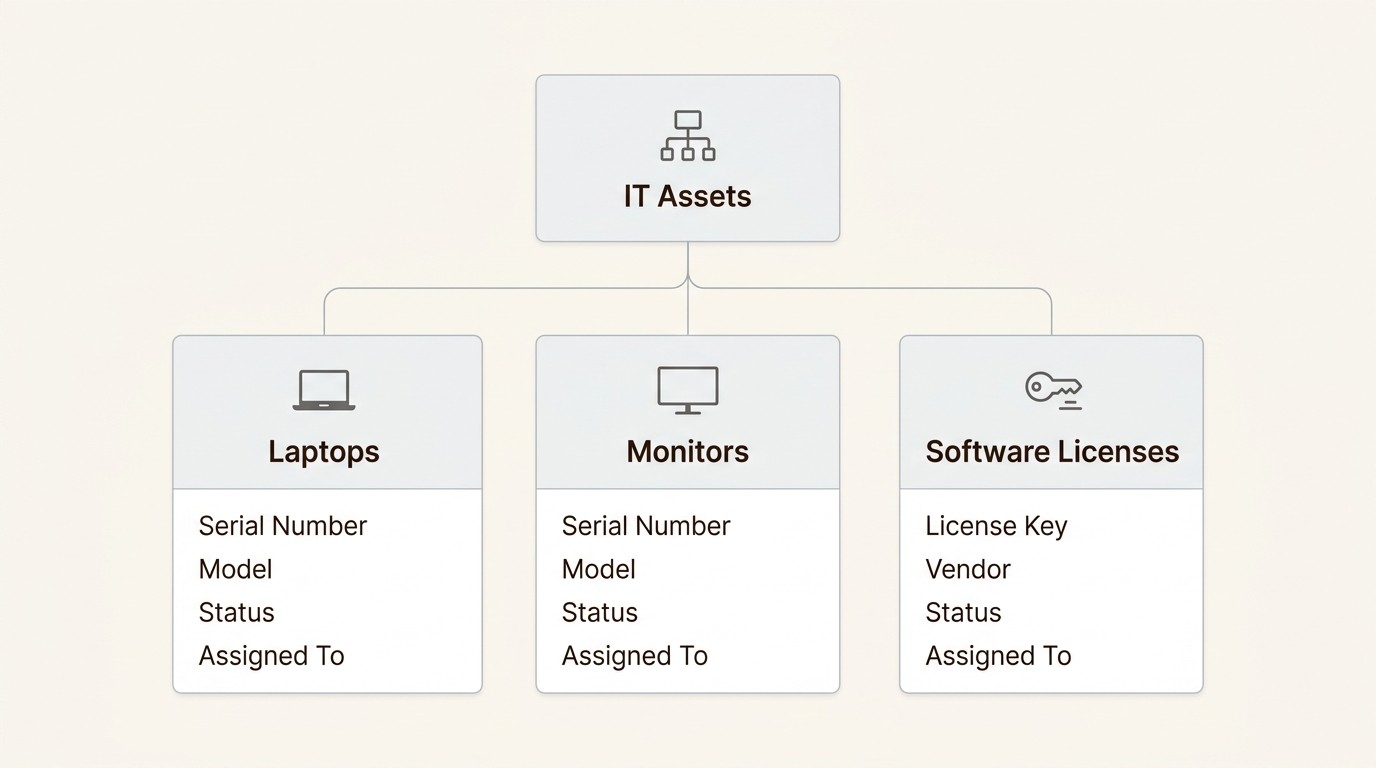
To create an object type:
Go to Assets > Object schemas and select your schema
Click the Create object type icon in the left sidebar
Name it (like "Laptop") and choose an icon
Add attributes: Serial Number, Model, Status, Assigned To, Purchase Date, Warranty Expiration
Attribute types matter. Use "Text" for serial numbers, "Date" for warranty expiration, "User" for assigned owners, and "Reference" to link related objects (like linking a laptop to its owner or software to the device it is installed on).
Setting up relationships between object types is where the real power comes in. When a server goes down, you can instantly see which applications depend on it. When an employee leaves, you can see every asset assigned to them. These references turn a simple inventory into a complete asset visibility system.
Step 3: Import your asset data
Manually entering hundreds of assets is not realistic. The CSV import tool lets you bulk-load your existing inventory.
Prepare your CSV file with columns that map to your attributes. At minimum, include:
Asset name or identifier
Serial number
Model or type
Status (In Use, In Stock, Retired)
Assigned user (if applicable)
Location
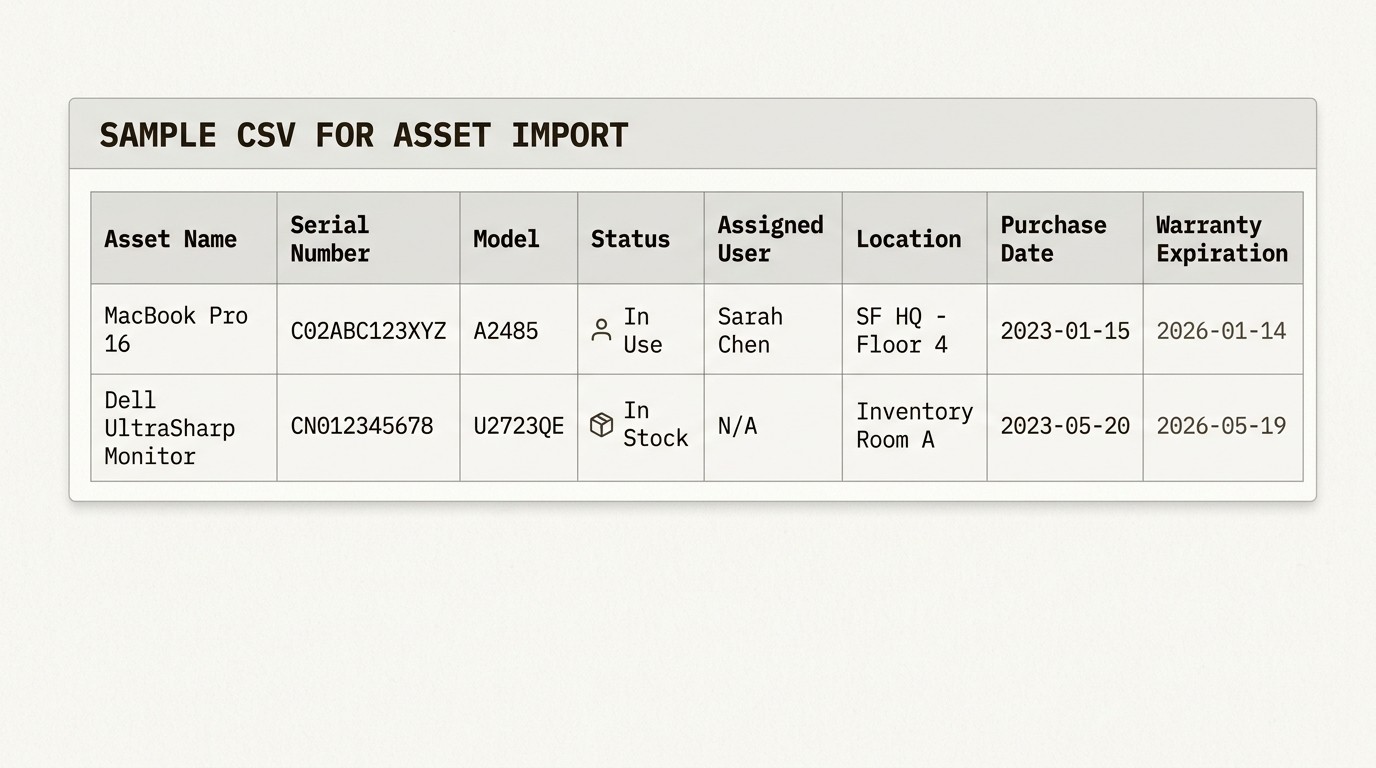
To import:
Go to Assets > Import in your object schema
Select CSV as the import type
Upload your file and create an import configuration
Map your CSV columns to object type attributes
Run the import and review any errors
Use unique identifiers like serial numbers as your primary keys to prevent duplicate records. If you are importing from multiple sources, make sure your naming conventions are consistent. "MacBook Pro" and "MBP" and "Apple Laptop" will create three separate object types unless you standardize first.
For teams using Microsoft Intune, Jamf, or other MDM solutions, you can set up scheduled imports to keep your asset data synchronized automatically. This eliminates the manual work of updating assignments when devices change hands.
Step 4: Configure asset custom fields for issues
Now that your asset data is in Jira, you need to make it accessible when people submit tickets. This is where Assets custom fields come in.
To set this up:
Go to Project settings > Issue types in your service project
Add a new custom field of type Assets Objects
Configure the field to filter relevant assets (like showing only laptops to the user submitting the request)
Add the field to your request types and screens
Configure the field to display asset details like model, serial number, and status
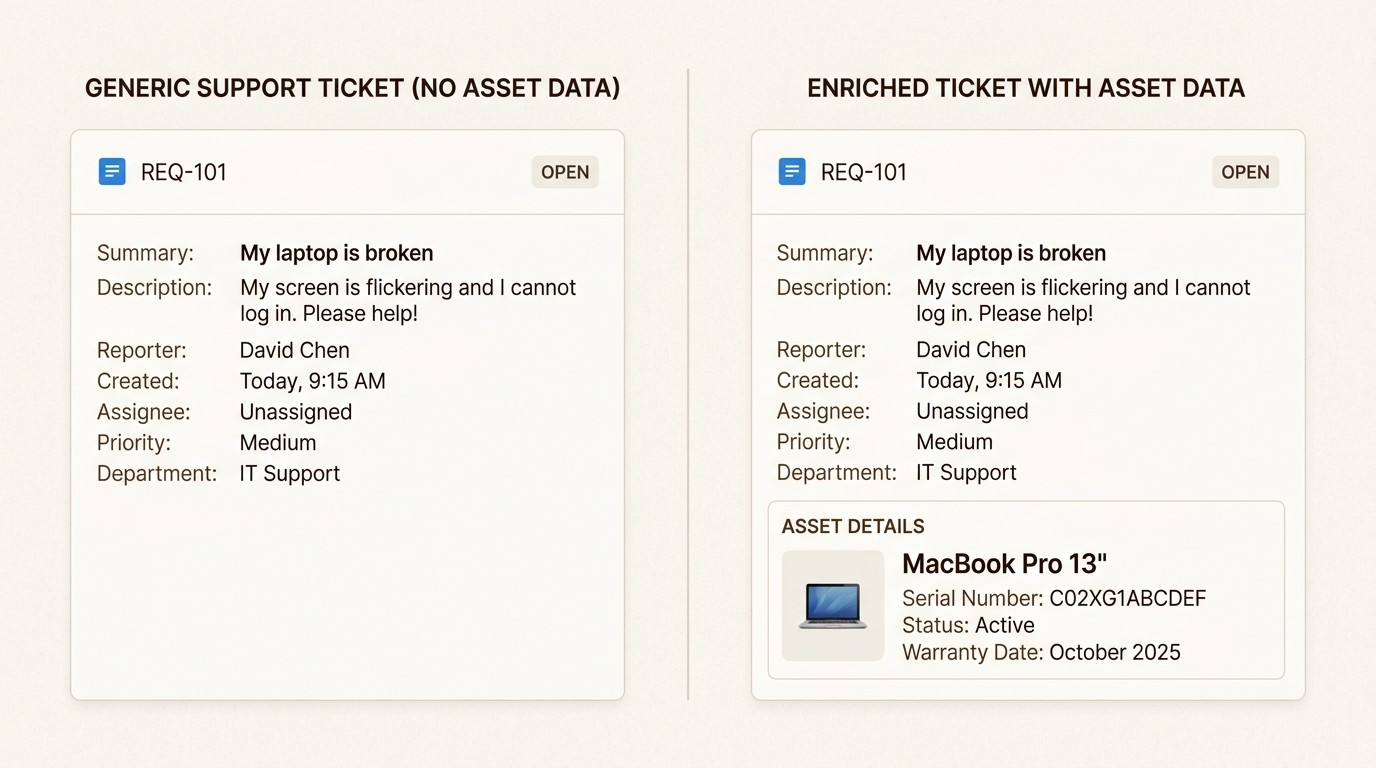
When an employee submits a "Broken Hardware" request, they can select their laptop from a dropdown. The IT agent sees the full asset context immediately: purchase date, warranty status, previous tickets for the same device, and the user's history with similar issues.
This context is what makes the difference between a 45-minute ticket and a 5-minute ticket. Instead of asking "What kind of laptop do you have?" and "When did we buy it?" the agent already knows. They can make decisions immediately: is this device under warranty? Is it due for replacement anyway? Has this user had similar issues before?
Step 5: Set up automation rules
Automation keeps your asset data current without constant manual updates. You can create rules that trigger based on ticket events and update asset records automatically.
Useful automation rules to consider:
On ticket creation: When someone submits a hardware request, automatically set the asset status to "Requested"
On assignment: When a laptop is assigned to a new employee, update the "Assigned To" field and set status to "In Use"
On resolution: When a ticket is resolved, update any relevant asset attributes
Scheduled: Check for warranty expirations monthly and notify the IT team
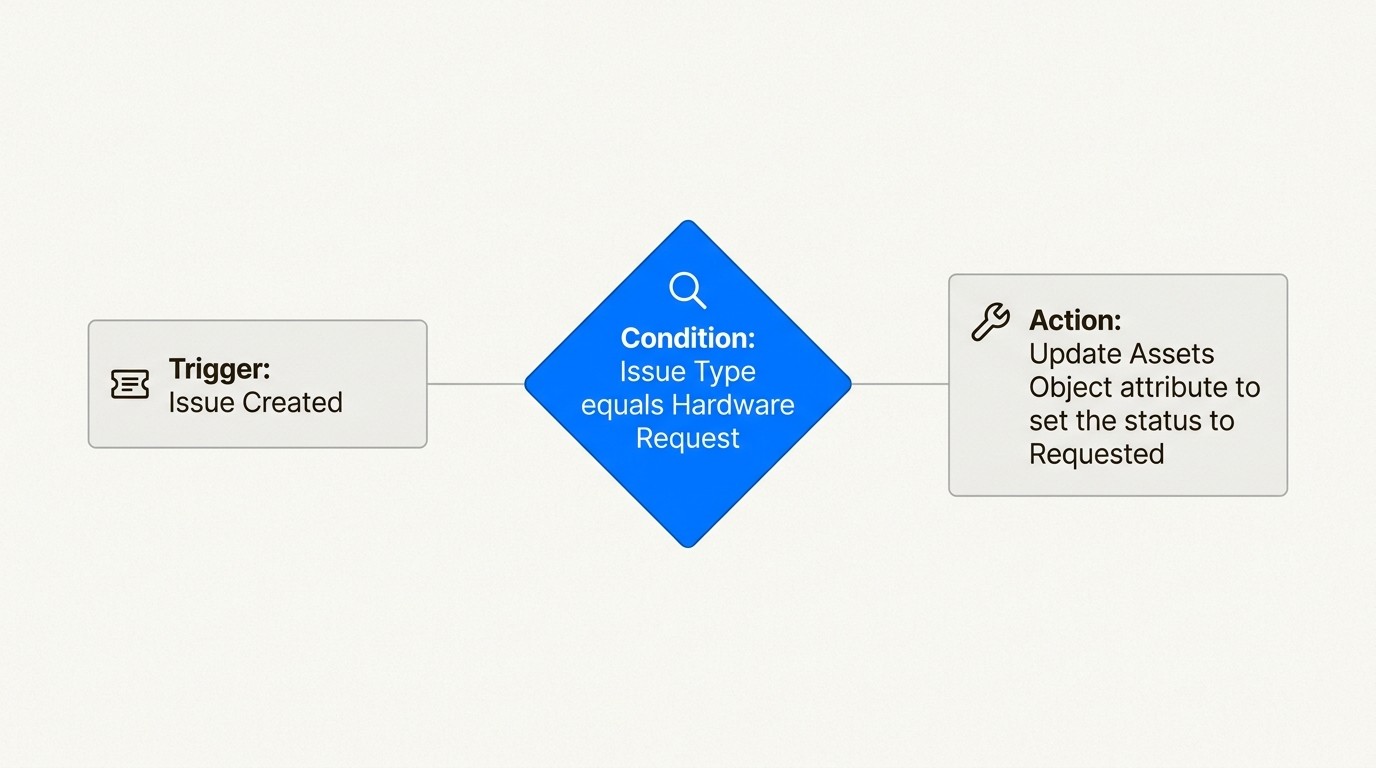
To create an automation rule:
Go to Project settings > Automation
Create a new rule with a trigger (like "Issue created")
Add conditions to check if the issue type is relevant
Add an action to update the Assets object field
Automation is particularly valuable for reducing equipment loss. When an employee's termination ticket is created, automation can flag all assets assigned to them for recovery, send notifications to their manager, and create follow-up tasks.
Tips for keeping your asset data accurate
Bad data is worse than no data. An outdated asset database leads to wrong decisions and wasted time. Here is how to maintain quality:
Schedule regular imports from your MDM or HR systems to catch new devices and user changes
Use unique identifiers like serial numbers as primary keys to prevent duplicates
Set mandatory fields for critical attributes like status and owner so incomplete records cannot be saved
Train your team on when and how to update asset records, especially during onboarding and offboarding
Create dashboards showing assets with missing data or unusual status combinations
Review quarterly by spot-checking a sample of records against reality
IT cost optimization is one of the biggest benefits of accurate asset tracking. One company discovered they were paying for 200 Adobe licenses but only 147 were actively used. Reducing to 160 licenses saved $28,800 annually. You cannot find those savings with a spreadsheet that is six months out of date.
Start tracking assets in Jira today
You now have a working asset tracking system in Jira. Your team can find equipment in seconds instead of hours. Support tickets resolve faster because agents have immediate context. You can answer audit questions without panic-searching through old emails.
If you are on Jira Service Management Standard or higher, Assets gives you enterprise-grade CMDB capabilities. For teams not using JSM or those who want something simpler, Asset Management for Jira offers a native alternative.
Asset Management for Jira works inside any Jira project, not just Service Management. It includes unlimited assets (no consumption-based pricing), built-in QR code scanning, and automatic sync with Intune, Jamf, and Kandji. Pricing starts at $10/month for up to 10 users, making it accessible for smaller teams who do not need the full JSM Premium feature set.
Whichever path you choose, start with your highest-value assets. Get your laptops and software licenses tracked first. Once you see the time savings from instant asset lookups and faster ticket resolution, you will wonder how you ever managed without it.
Frequently Asked Questions
Can you track IT assets in Jira without Jira Service Management Premium?
Yes. Jira Service Management Standard now includes Assets with up to 5,000 objects. For teams on lower tiers or those wanting a simpler solution, Asset Management for Jira works with any Jira plan and includes unlimited assets.
How do you import existing asset data into Jira Assets?
Use the CSV import tool in Assets > Import. Prepare a CSV file with columns for asset name, serial number, model, status, assigned user, and location. Map your CSV columns to object type attributes during the import configuration. You can also set up scheduled imports from MDM systems like Intune or Jamf.
What types of IT assets should you track in Jira?
Start with high-value, frequently-supported items: laptops, monitors, mobile devices, and software licenses. These give you the fastest ROI. Expand to network equipment, peripherals, and other assets once you have the process working.
How does asset tracking in Jira improve IT support?
When assets are linked to tickets, agents see complete device context immediately: purchase date, warranty status, previous issues, and configuration. This eliminates the 20-30 minutes typically spent gathering basic information. Teams report 30-40% faster ticket resolution with asset data available.
Can you automate asset updates in Jira based on ticket events?
Yes. Jira automation rules can update asset status when tickets are created, assigned, or resolved. For example, when a laptop assignment ticket is completed, automation can update the asset's 'Assigned To' field and change status to 'In Use.'
What is the difference between Jira Assets and Asset Management for Jira?
Jira Assets is the built-in CMDB in Jira Service Management. Asset Management for Jira is a third-party app from the Atlassian Marketplace that provides asset tracking without requiring JSM. Assets uses consumption-based pricing for objects above plan limits; Asset Management for Jira includes unlimited assets with predictable per-user pricing.